eClass and Canvas Support
|
Editing videos using YuJa
Last modified on 04 August 2026 01:18 PM
|
|
|
The Yuja platform includes a basic video editor that runs from your web browser, allowing you to make edits, add titles, and/or combine clips without downloading the videos. Note that these tools are rudimentary - more advanced editing involving multiple clips, sound editing, etc. would be better accomplished using a full-feature offline editor such as iMovie or Camtasia. This article will demonstrate how to trim the start or end of a video (a task where it might make sense to edit using YuJa). Please see the bottom of this page for links to the vendor's full documentation, which provides a more thorough description of the YuJa editor tools available.
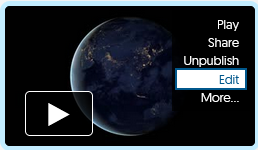
Launching the editor: When you hover your cursor over a video in your media library, clicking the Edit option will launch the Yuja video editor in your web browser:
Trimming the start and end from a video: 1. Drag the playback head to the point you’d like the video to start from, then select the “Split” button to make a new cut. Note that in the Yuja editor, a “Split” refers to a section selected to be omitted from playback:
2. Click on the selected area, and it will highlight the split area:
3. If you click and hold with your mouse, you can move the handles and set precise start and stop points. In this example, we set the start time to 00:00:00 to ensure the clip begins at 00:00:00:04 seconds, with no leading frames. 4. To trim the end, we’ll repeat the process: Put the playback head where the cut begins, select the "Split" tool, then click on the timeline towards the end of the video (it will automatically select to the end of the video):
5. If you click before or after the selected area, you can delete those parts instead. 6. To remove a section from the middle of a video, click "Split" at the beginning of the section to be selected, move the playback head to the end of the section and click "Split" again. 7. Click the “Save” button at the top right to save your video, either as a new copy or replacing the original (the original goes to your recycle bin):
Links to vendor documentation: Advanced Options for Video Editor
| |
|
|