eClass and Canvas Support
|
Using the Google Gemini LTI Integration in a Canvas Course
Last modified on 17 July 2026 09:29 AM
|
|
|
This article guides users in adding the Google Gemini LTI integration into their Canvas course. The LTI tool provides a convenient launching point that links students into existing content created in Google Gemini including Gems and Notebook LLM pages. Use of Google Gemini is approved through the U of A's Framework for Responsible Use of AI.
Contents:
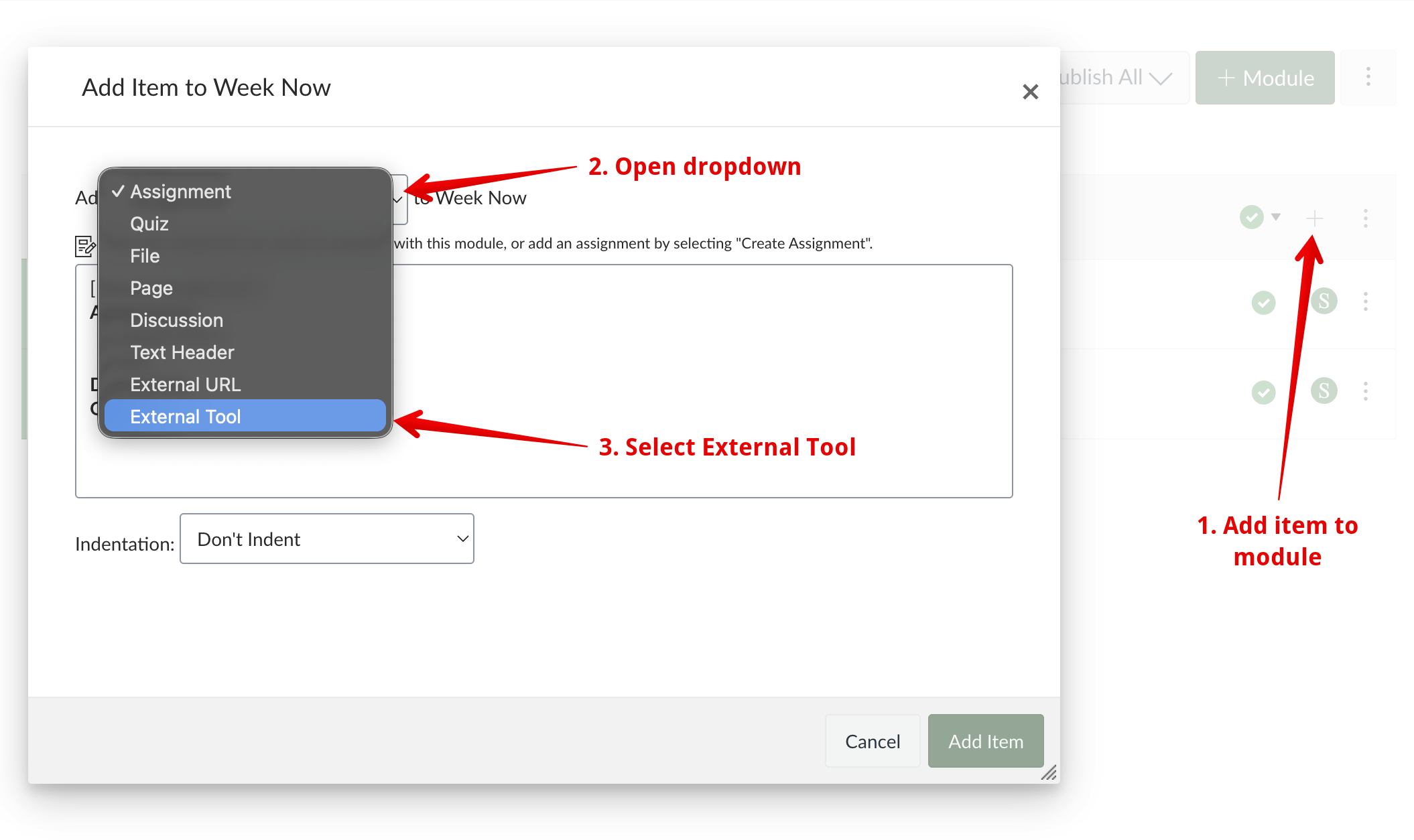
Creating Content in Google GeminiWhile using the Google Gemini toolset is beyond the scope of this article, the U of A has several guides for users: - Getting Started with Google Gemini - Incorportating Generative AI into Courses (CTL) Adding a Gemini LTI Link into a Course ModuleTo link Gemini content, instructors can click the + icon near the top right of a module and select External Tool from the available content types:
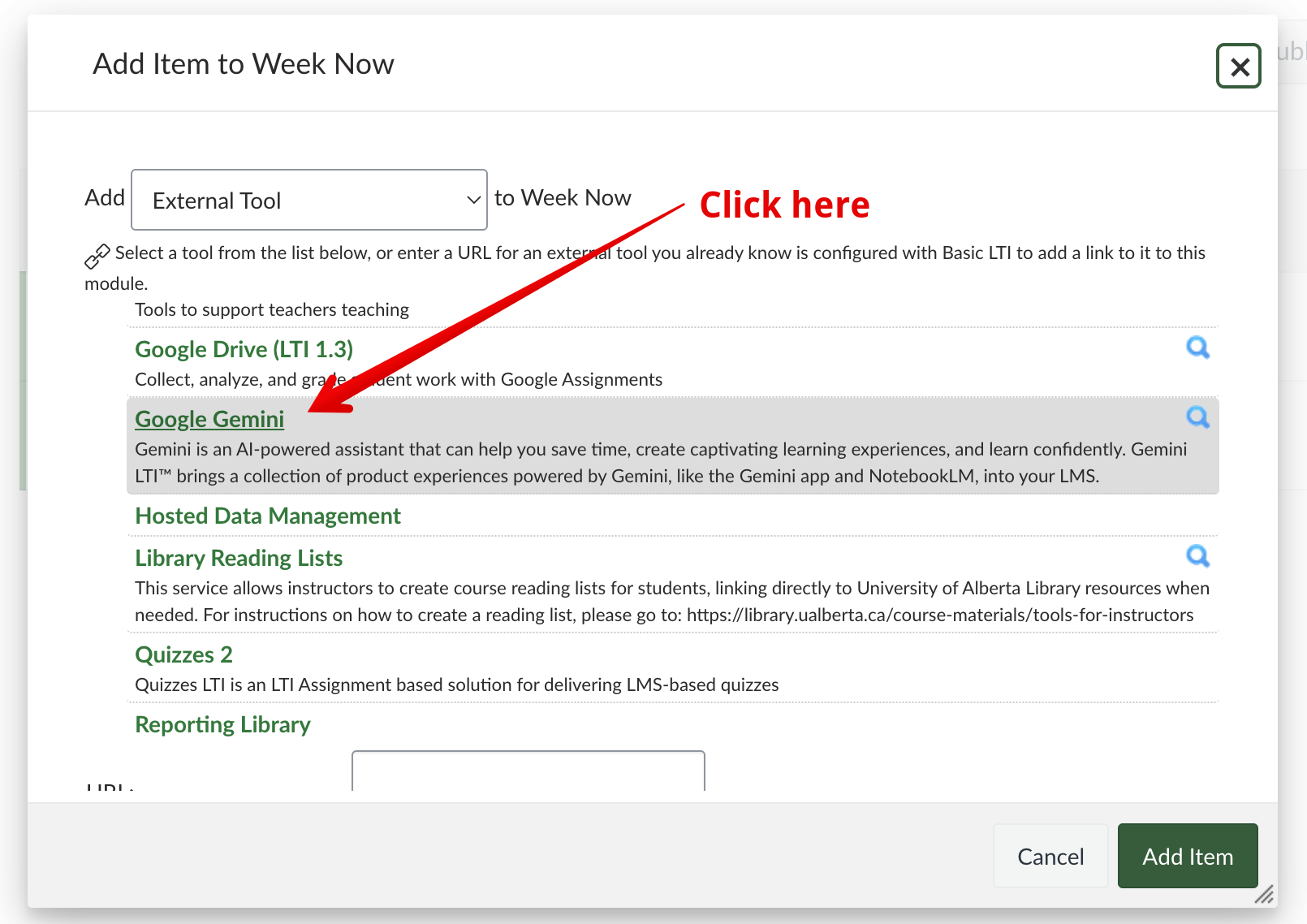
Then find Google Gemini in the list of available tools and click it:
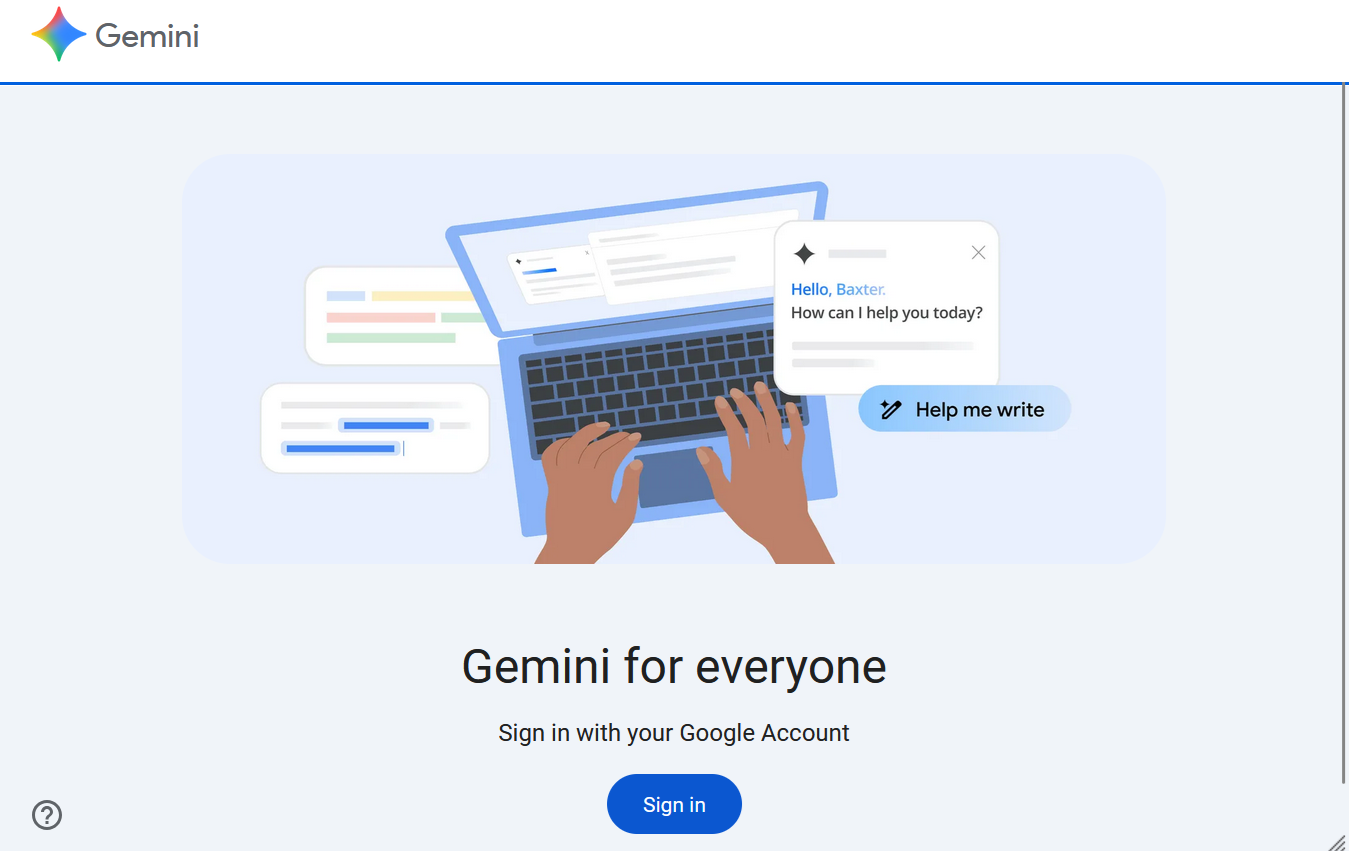
If it is your first time accessing your Gemini content from within Canvas, you will need to sign into you UAlberta google account and authorize the integration:
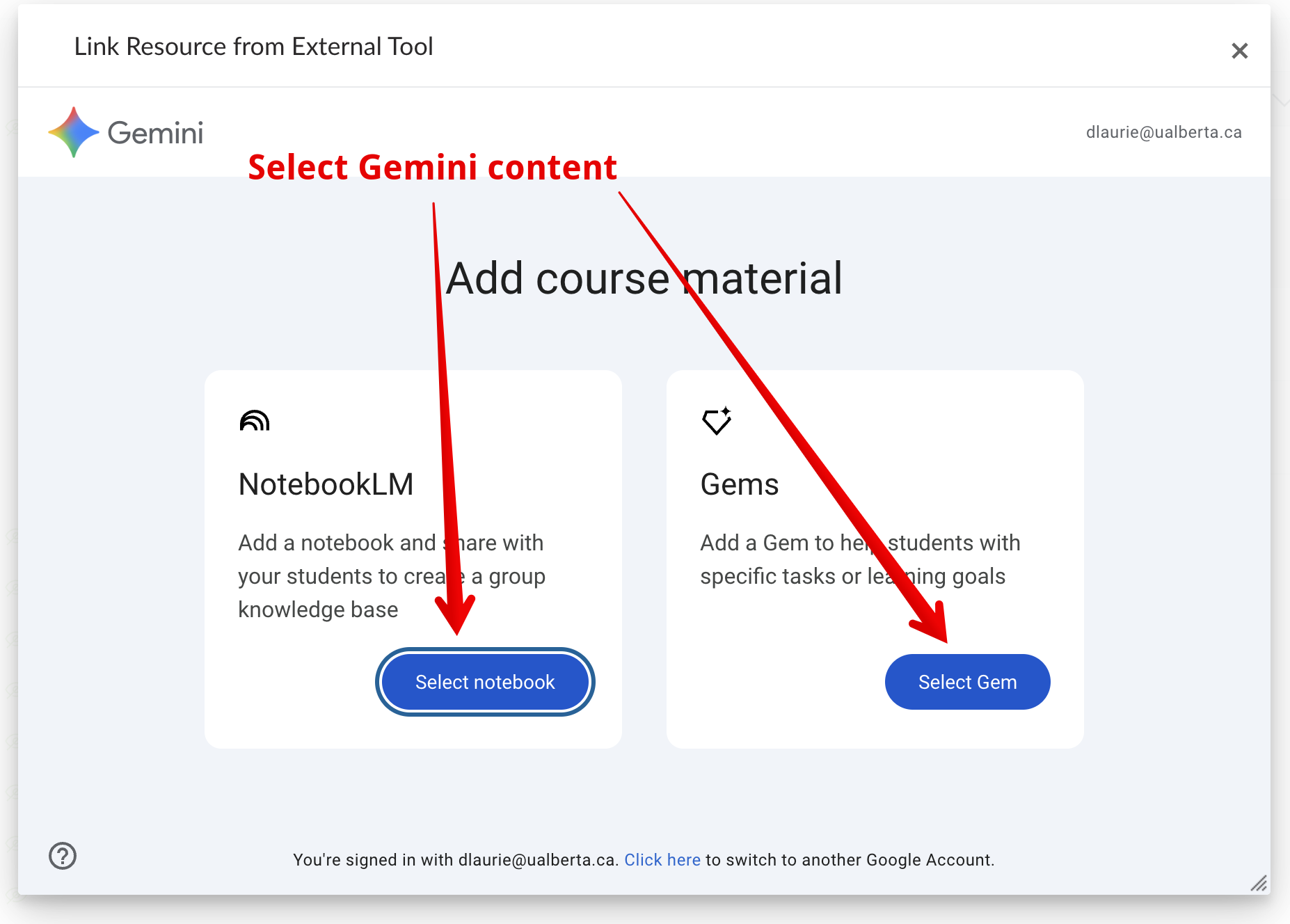
After that, the modal will provide instructors a choice between their existing Notebook LLM pages or their Gems:
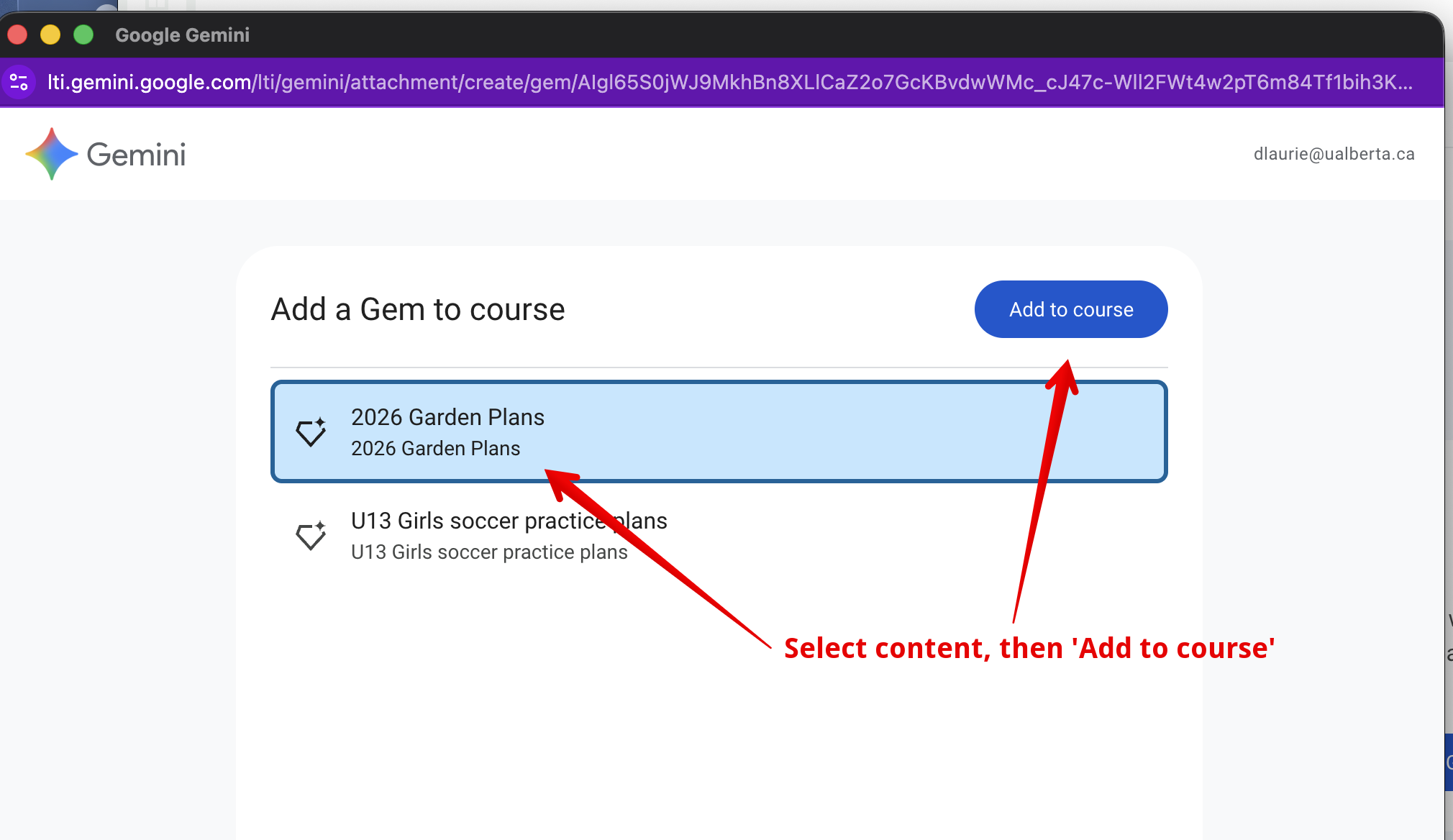
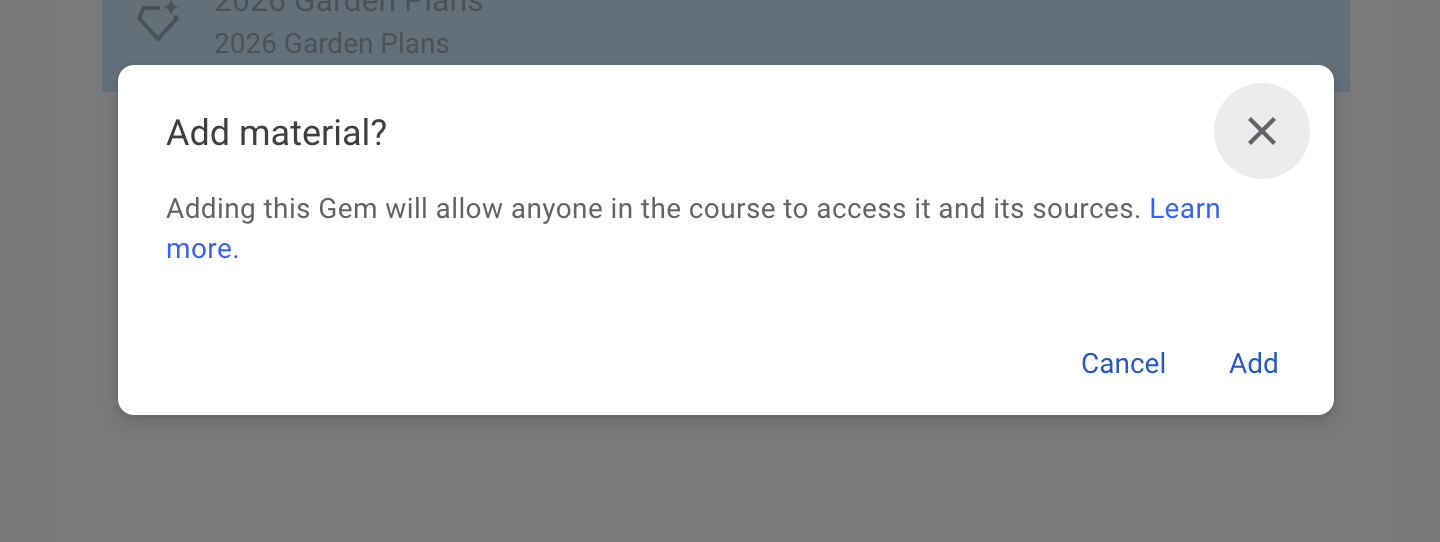
Select the desired option, then the desired content and confirm granting access:
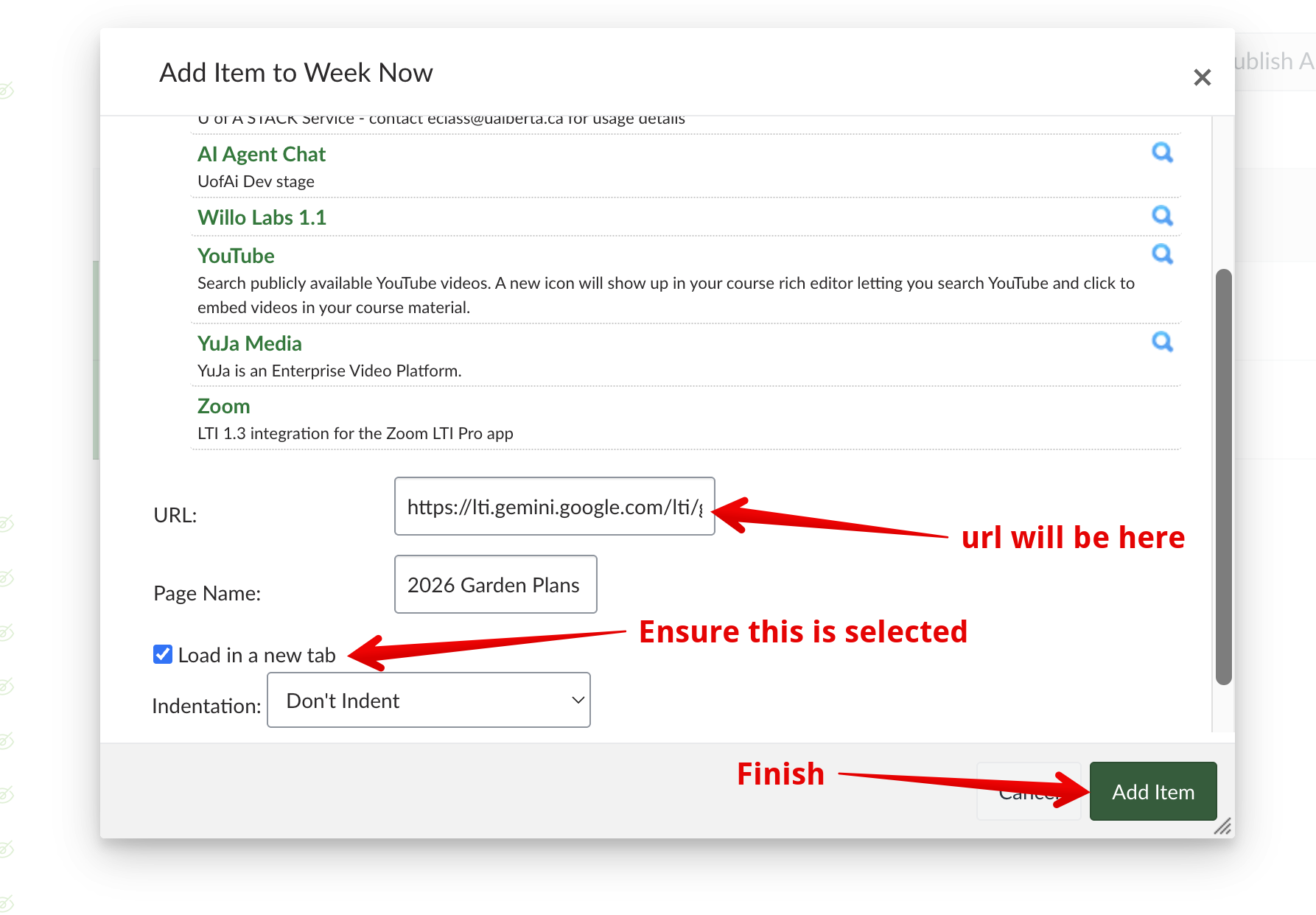
Once you click Add on that screen, the Canvas modal will re-appear where you should see an LTI link added in the field at the bottom, along with the button to Open in a new tab selected which must be selected. Click Add item at bottom left:
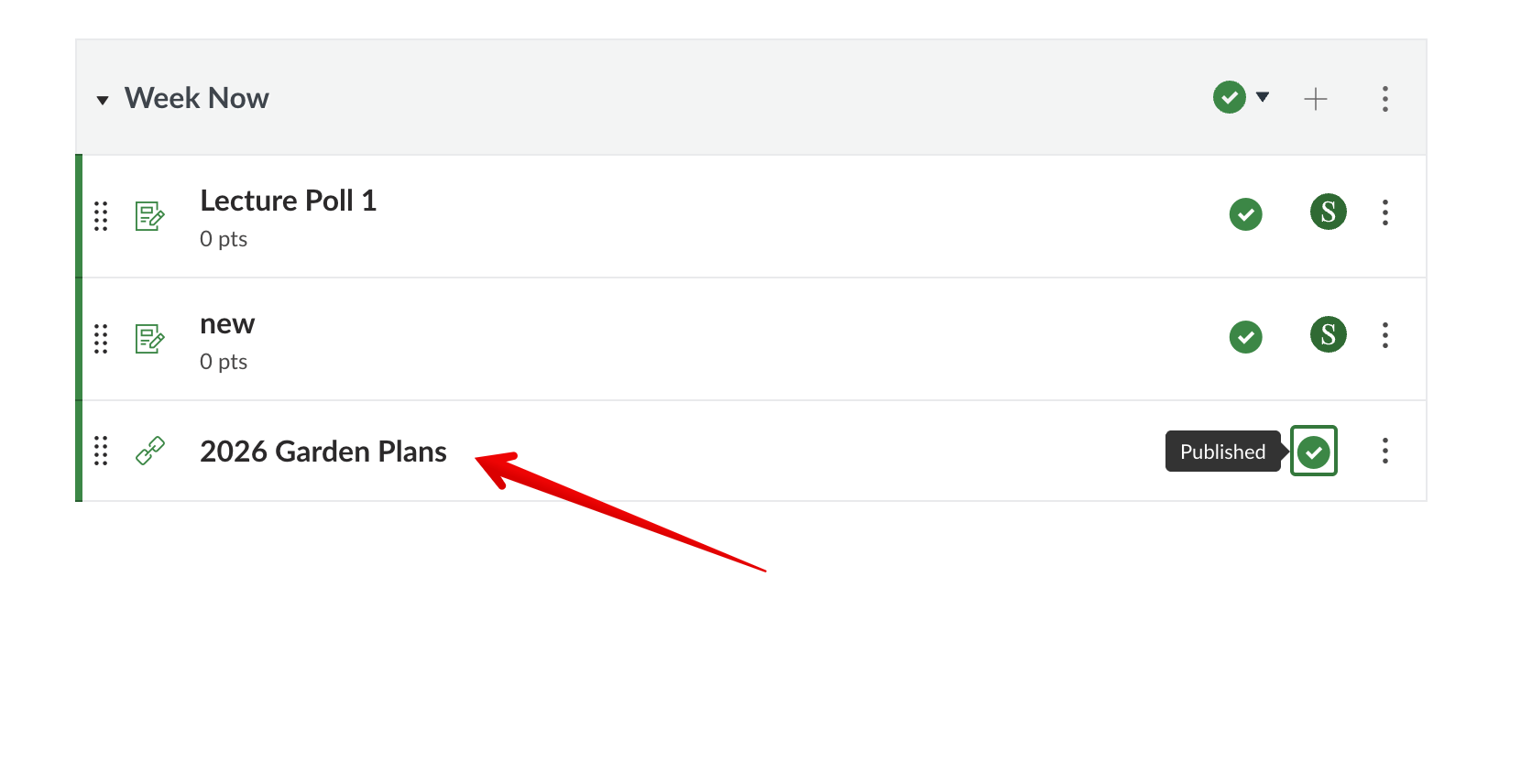
The content will now be available for students in the module (as long as it is published.)
Instructors can add as many LTI links to their Gemini content as they want into the same course. | |
|
|