eClass and Canvas Support
|
Using YuJa (for Students)
Last modified on 01 September 2026 11:21 AM
|
|
|
YuJa is the University of Alberta's Enterprise Video Platform. Students can use the platform to watch, upload, record and share videos through Canvas courses. Instructions for using the full range of video features are Contents:
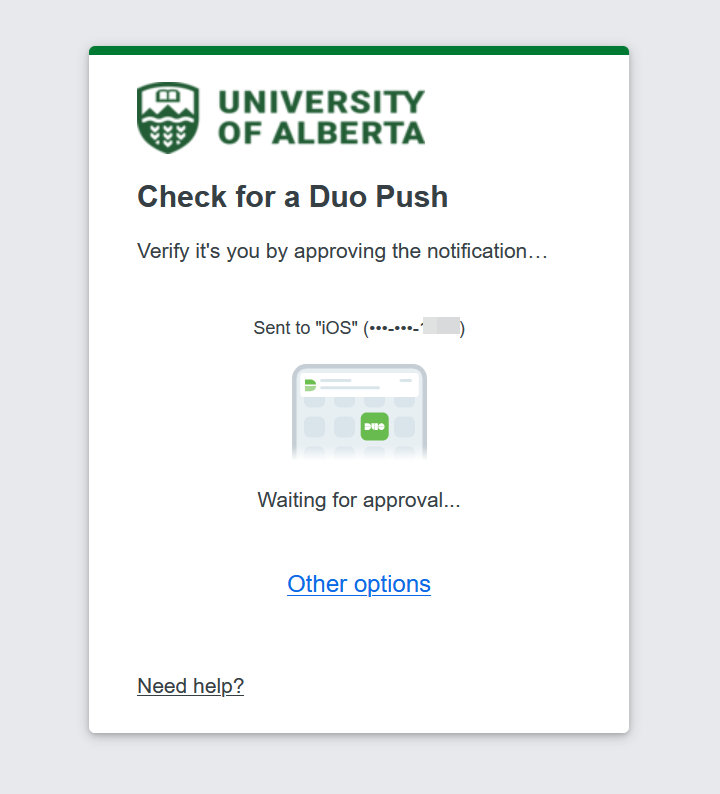
Uploading and Captioning Videos Any user with a valid CCID can sign in at
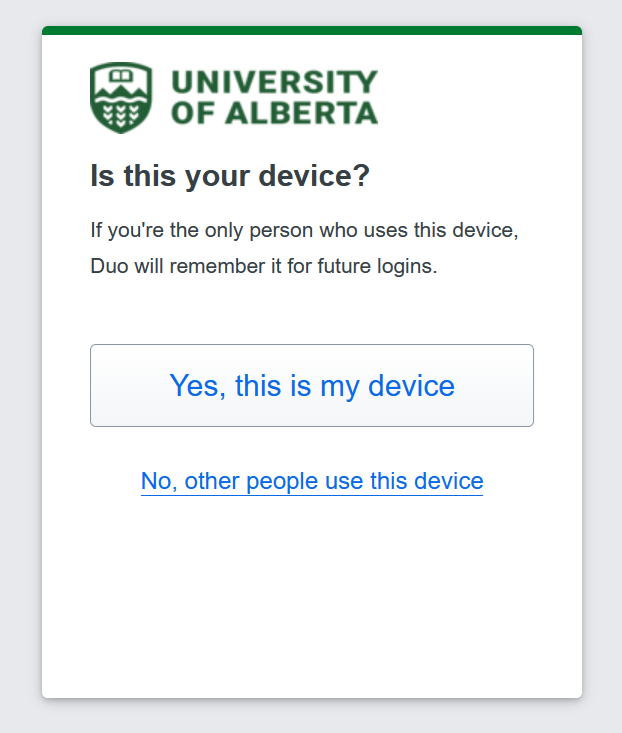
As a reminder for when using a public computer, choose the 'No, other people use this device' option.
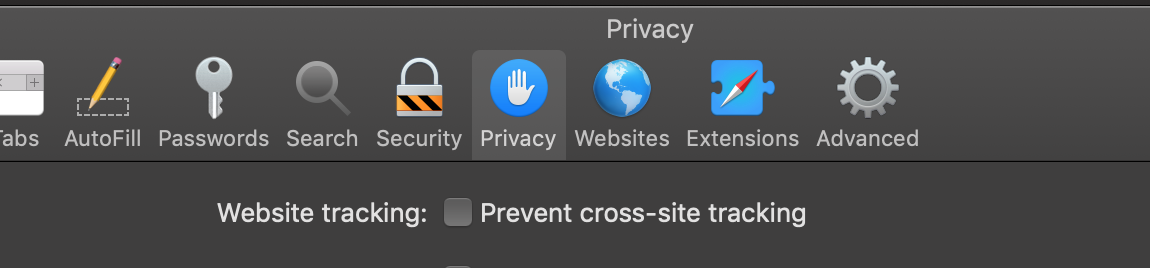
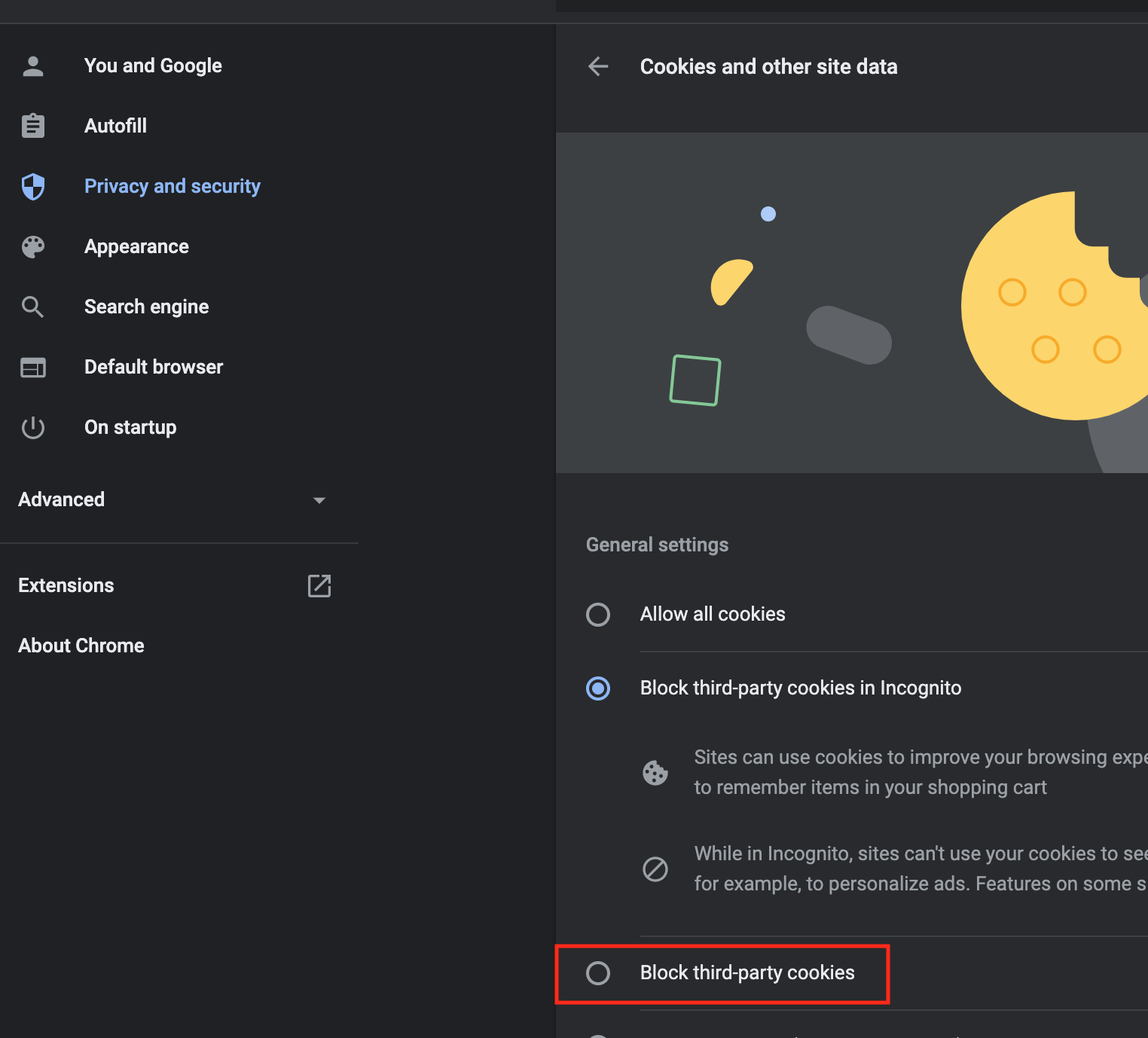
Students can consult the following articles for specific assistance when submitting videos for assignments, forum posts, and other course requirements: Resolving 'Restricted' Video Errors Occasionally, students may encounter a notice stating "This video is restricted" even when the instructor has correctly published the video to a course channel. This issue occurs when third-party cookies or cross-site tracking are blocked in the web browser.
To resolve this issue:
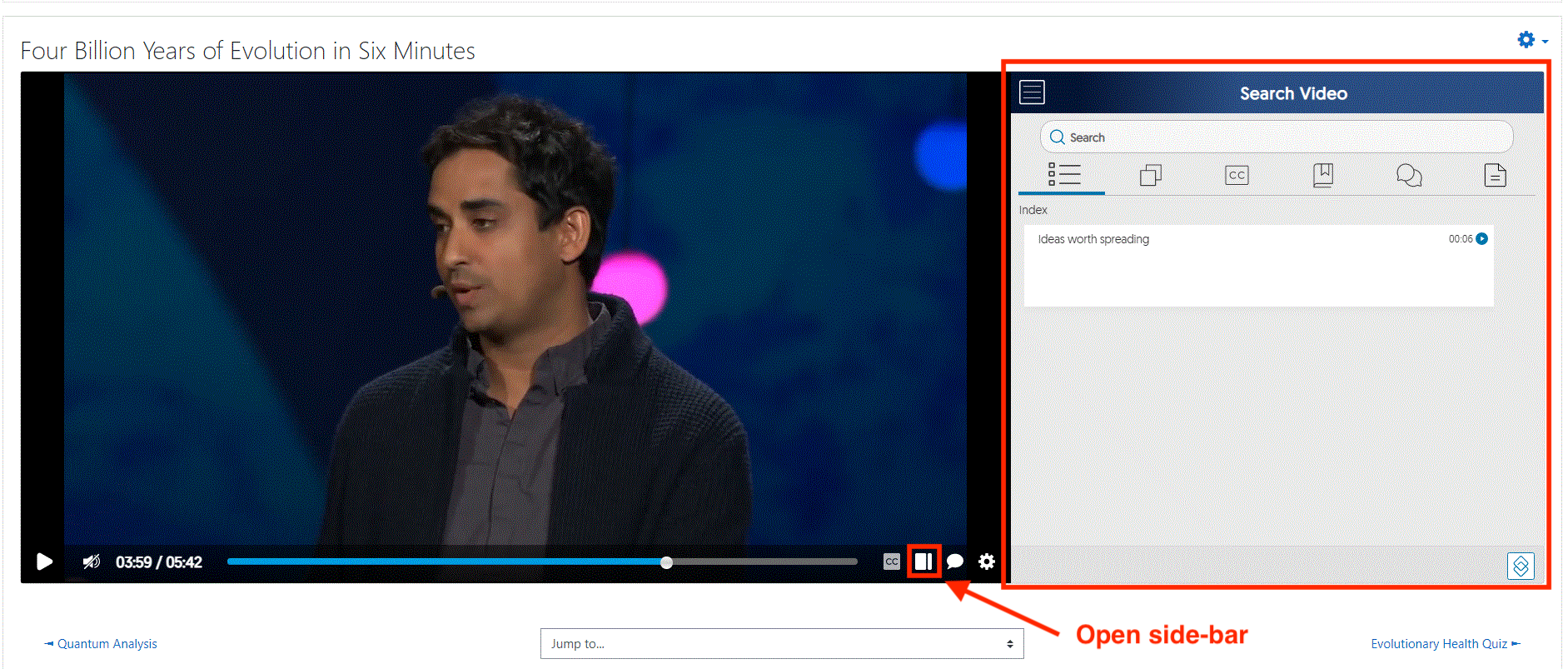
For recordings created using YuJa Create Recording, controls are available to allow different views of the screen capture and camera capture. If no camera capture exists, the blank picture-in-picture frame can be disabled by switching to a single-stream view. Downloading Video Caption Files All videos in YuJa are automatically captioned (or instructors may upload specific caption files corresponding to the videos). Students can download these files by completing the following steps: 1. Opening the video sidebar:
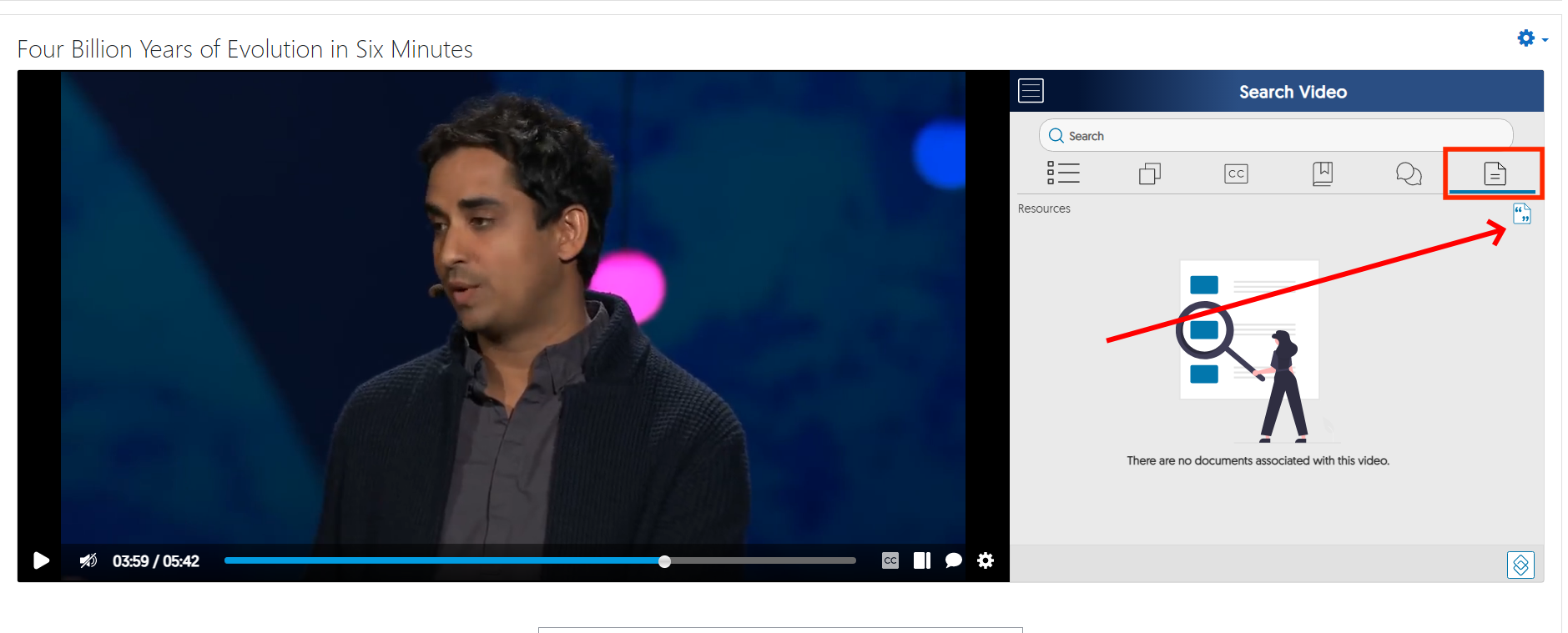
2. Click the download icon located in the Documents tab on the far right.
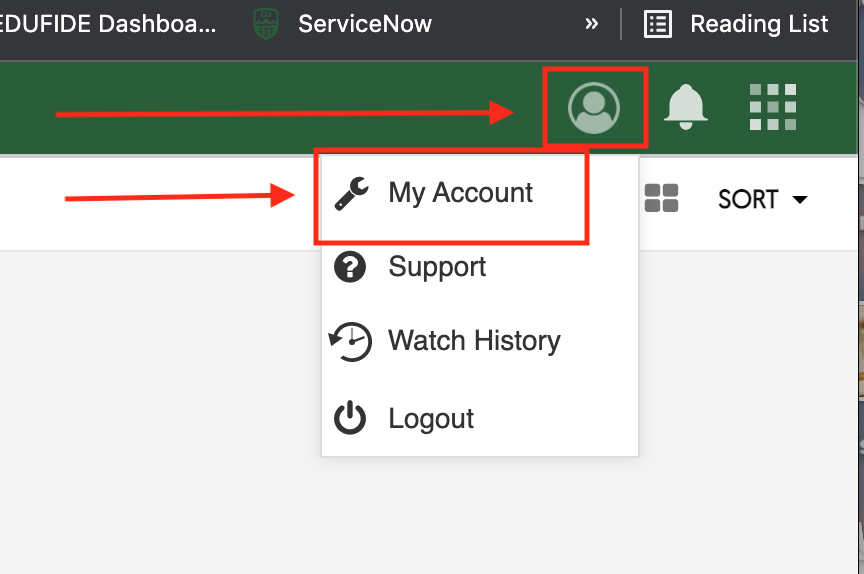
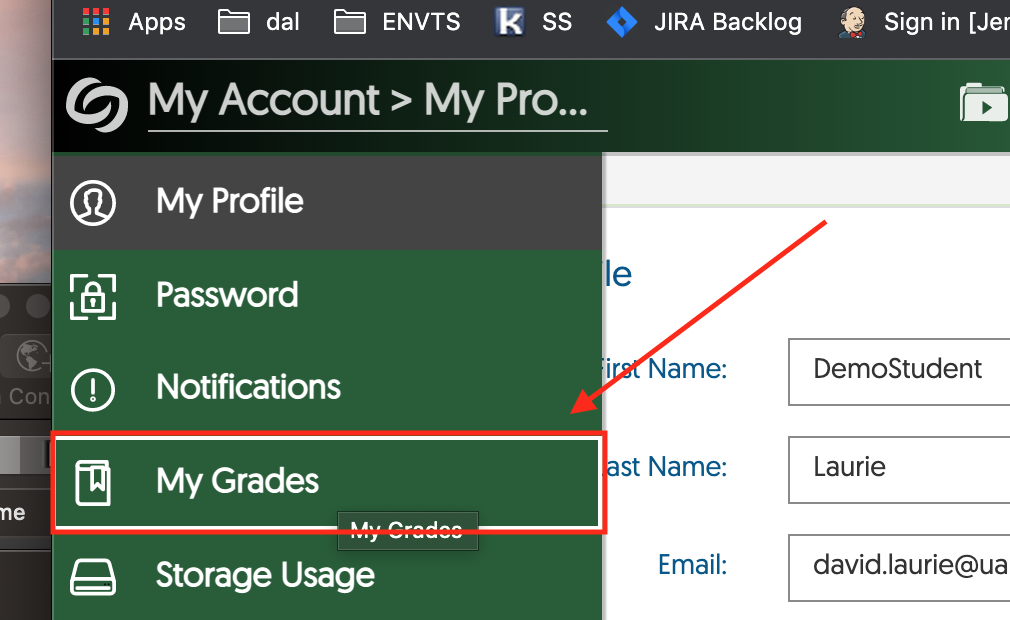
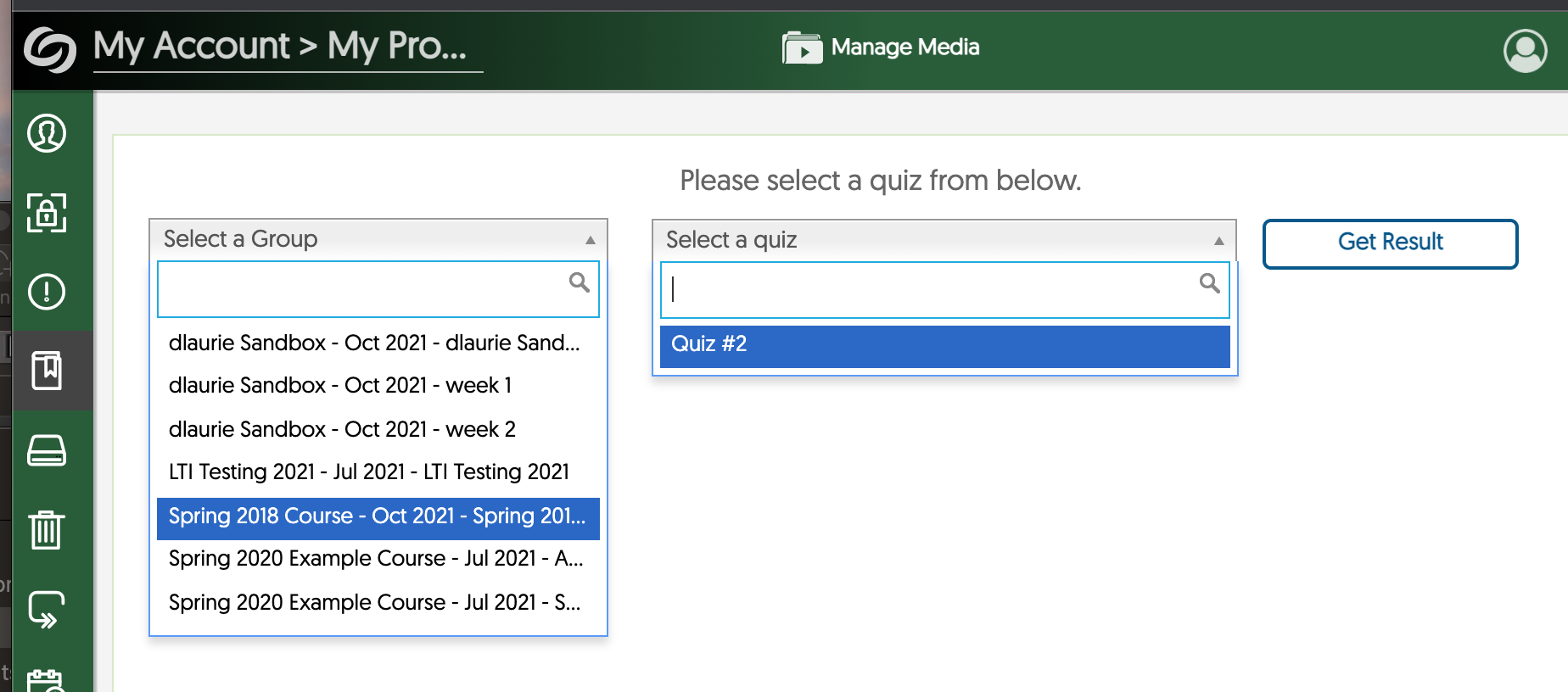
Viewing Full Answers in Video Quiz Attempts: By default, YuJa video quizzes only post the final quiz score back to the gradebook in Canvas. Instructors have the option to close quizzes on a particular date, which then permits students to view all questions and answers within the quiz. To view these details, access YuJa directly:
Once on the YuJa platform:
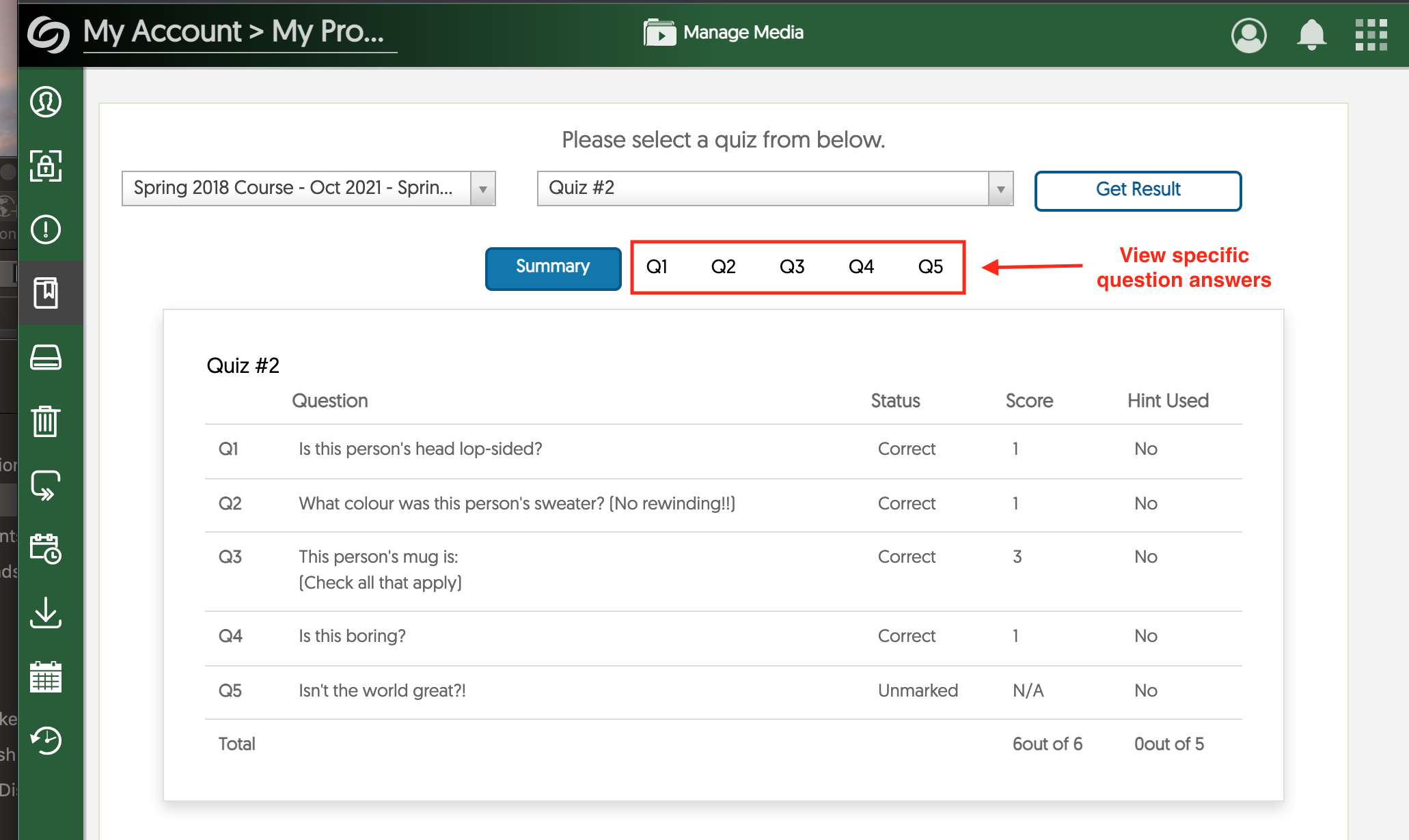
The Summary tab displays all questions, correctness indicators, and the total score. Clicking on the specific question tabs (Q1, Q2, etc.) will display the exact answers selected.
| |
|
|