eClass and Canvas Support
|
Adding YuJa Videos into Content Areas of Canvas
Last modified on 01 October 2026 04:42 PM
|
|
|
This article outlines how to add YuJa videos through the standard Canvas editor available in most content areas in the system. Contents:
For instructors, common spots for adding media would include the content sections of pages, quizzes, assignments, and discussions. For students, media would most commonly be added to Discussion posts or in assignments requiring online entry submissions. This article will show the process from a student's point of view when adding a video to a Discussion post, but the process is common to all content entry locations. Adding a video to a content area (example) To add YuJa videos in a discussion post, for example, click the +Add Discussion button, add a topic, open the content editor, then select the YuJa button:
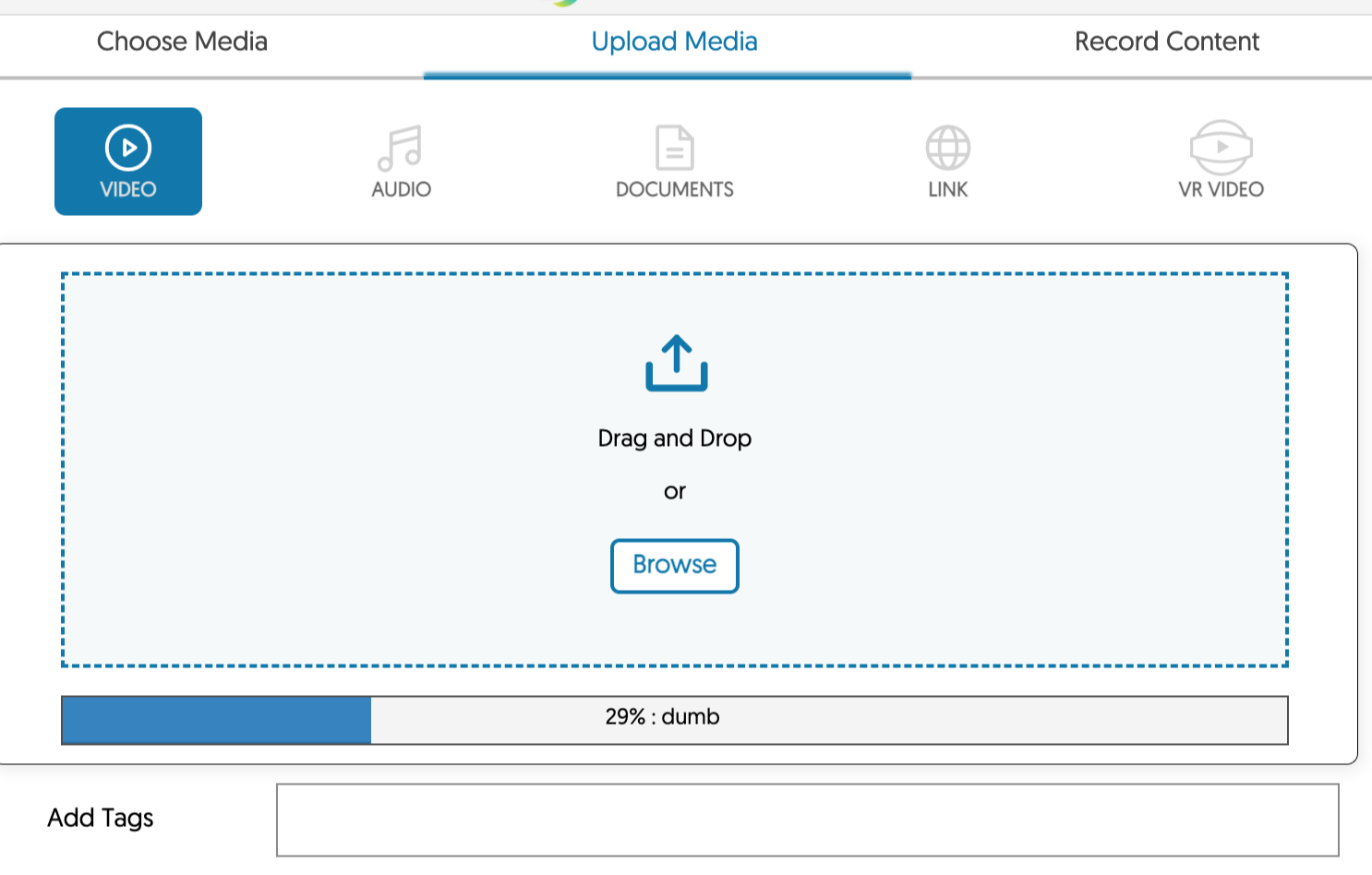
Note: If the YuJa button is hidden, you can find it under the plug-in button marked above. YuJa videos can also be added to any content editor in quizzes, assignments and pages. The first time a student accesses YuJa, no media will be available to select, so they should select Upload media or Record content:
When uploading, it is possible to drag and drop or browse to upload existing video files. Once selected, these will appear in a progress bar below the uploader while they are in progress:
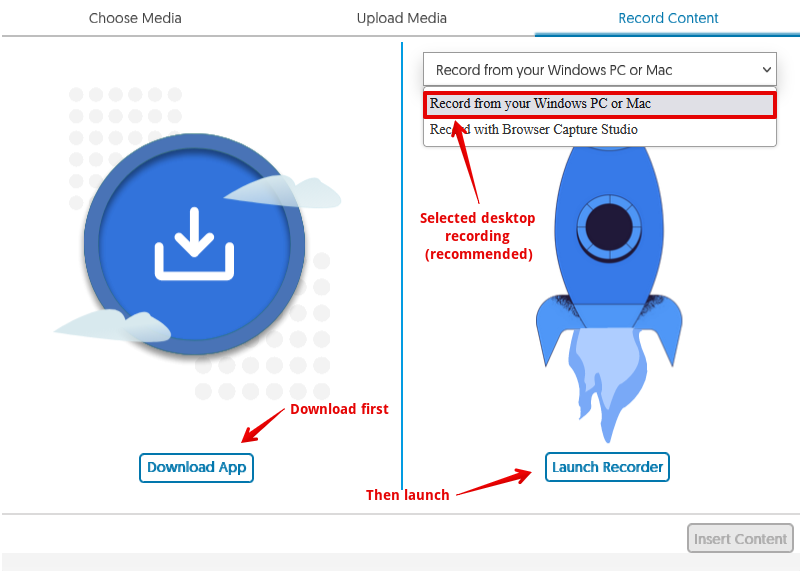
If students do not have their own media content to add, they can record content. To record, students will first need to download the YuJa desktop capture application and should select the desktop recording option (browser recording is recommended only if a user is working on a machine that does not have the desktop capture application installed):
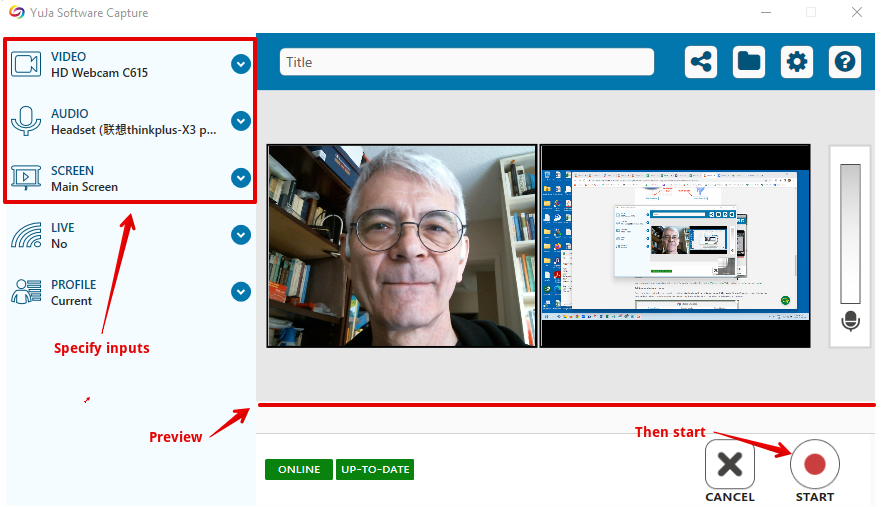
Once launched, the capture application allows users to select the video, audio, and screen feeds:
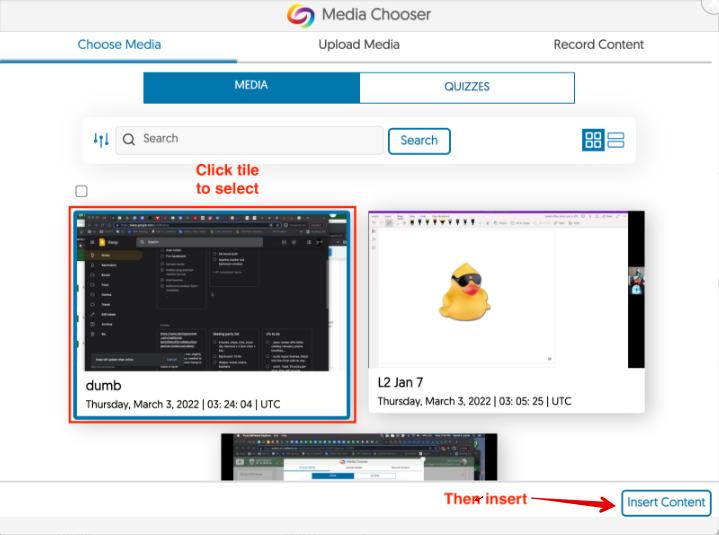
More information on recording videos in YuJa can be found in Recording Videos Using YuJa and on the YuJa support portal. Once they have uploaded or recorded a video, students will need to re-launch the Yuja Media Chooser from the Discussion editor. They should now see the media they have added, which can then be selected and inserted:
Once the YuJa video title appears in the discussion topic content area, it can be posted into the forum or assignment by clicking Insert Content. The resulting Discussion post will display the video in the message frame. Since it is hyperlinked from YuJa, it does not increase the file storage in the course.
| |
|
|