eClass and Canvas Support
|
Creating and Accessing Zoom Meetings through Canvas
Last modified on 27 October 2026 02:04 PM
|
|
|
Zoom is currently available for all Faculty and Staff at the UofA. If a Zoom account is required by a Staff or Faculty member who does not want to access Zoom via Canvas (or eClass), please contact us at eclass@ualberta.ca to request a manual account in Zoom. This article describes how instructors can create and launch Zoom meetings through their Canvas course. It is also possible to create online sessions outside of regular Beartracks credit sections.
Contents:
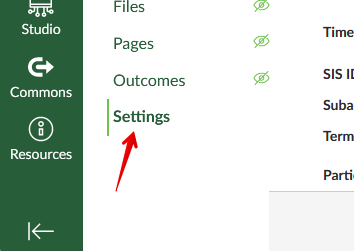
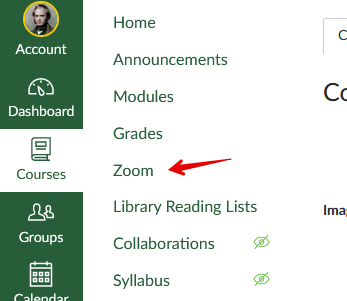
Adding Zoom to Canvas1. If Zoom is not visible in your course left navigation menu, you may add it from the Settings menu:
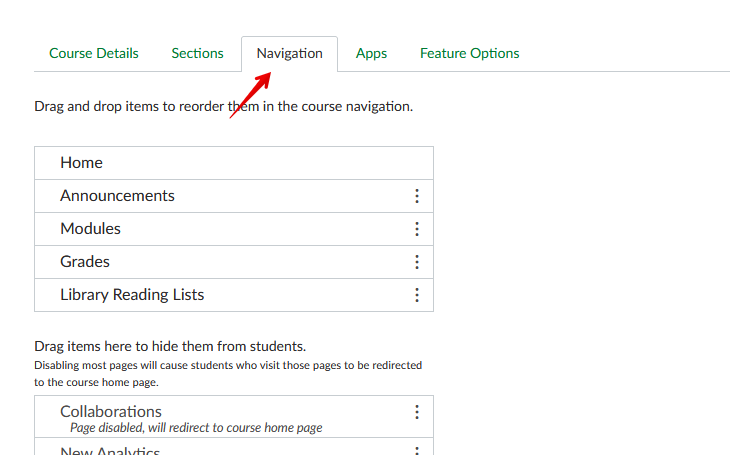
2. Click on the Navigation tab:
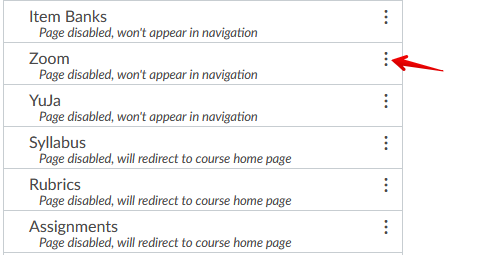
3. Click on the three dots to the left of Zoom and drag it up to the area for visible items:
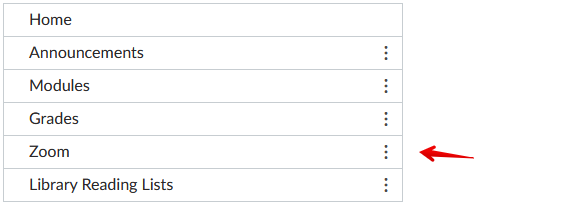
4. Click Save at the bottom of the page. If successful, the Zoom link will be available in the left navigation items visible to students:
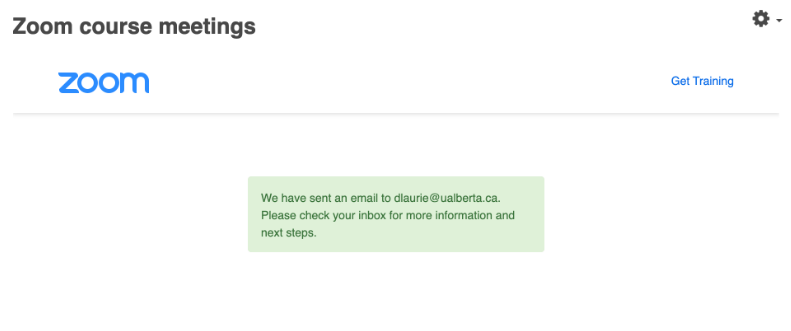
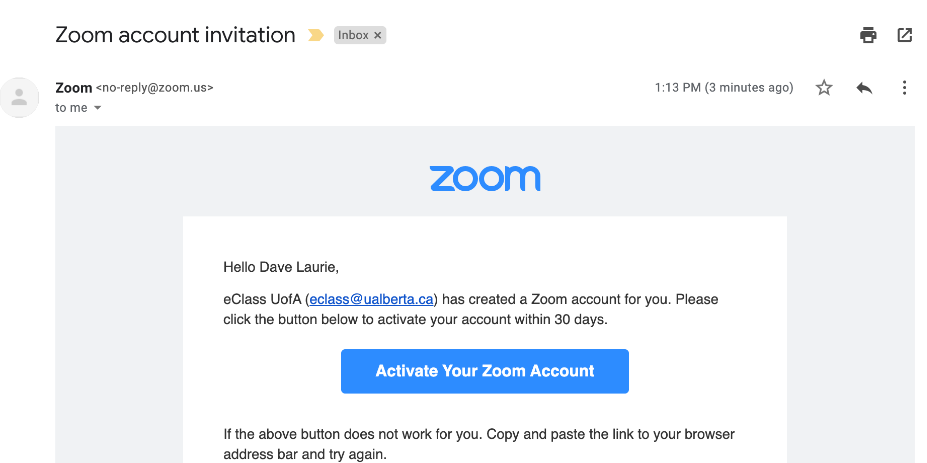
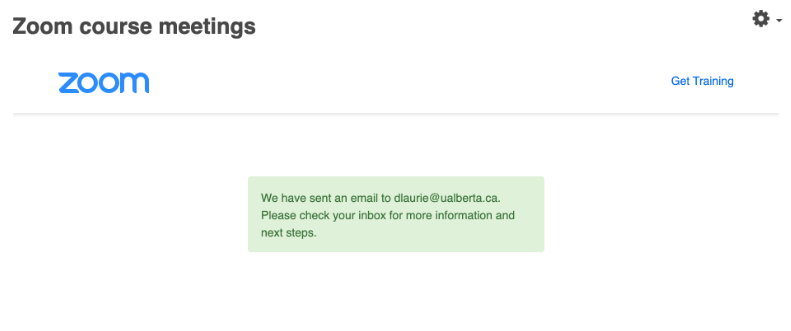
Activating a Zoom accountOnce you click the link, you should now see the Zoom course dashboard. If this is your first time accessing the tool (and Zoom), you will need to confirm your UAlberta email address as an account on the system. Note: if you already have a Zoom account associated with your UAlberta Gmail account (in the form ccid@ualberta.ca) you may encounter problems with this step. You will need either to delete or rename your personal account to link an account to Zoom through Canvas.
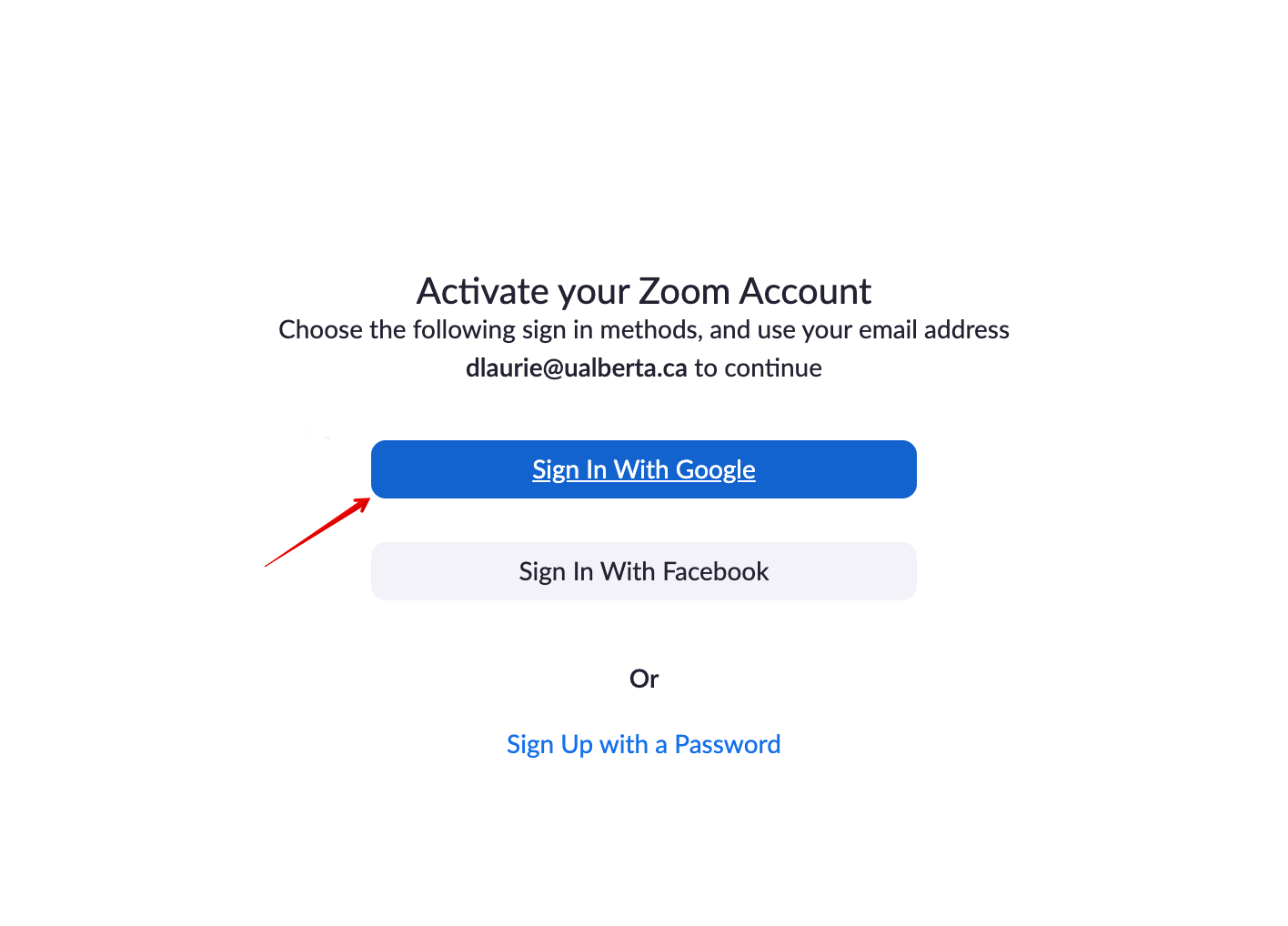
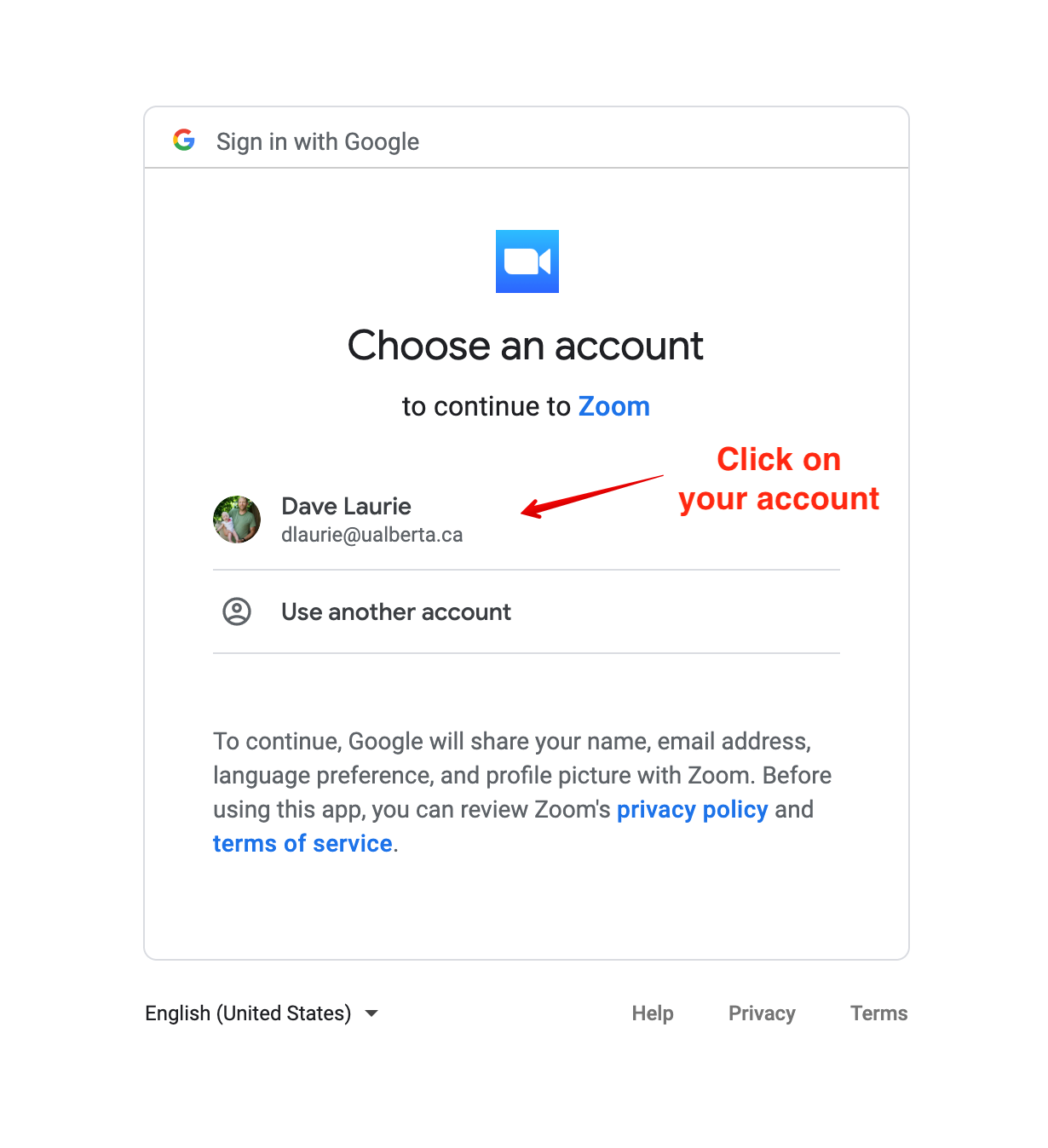
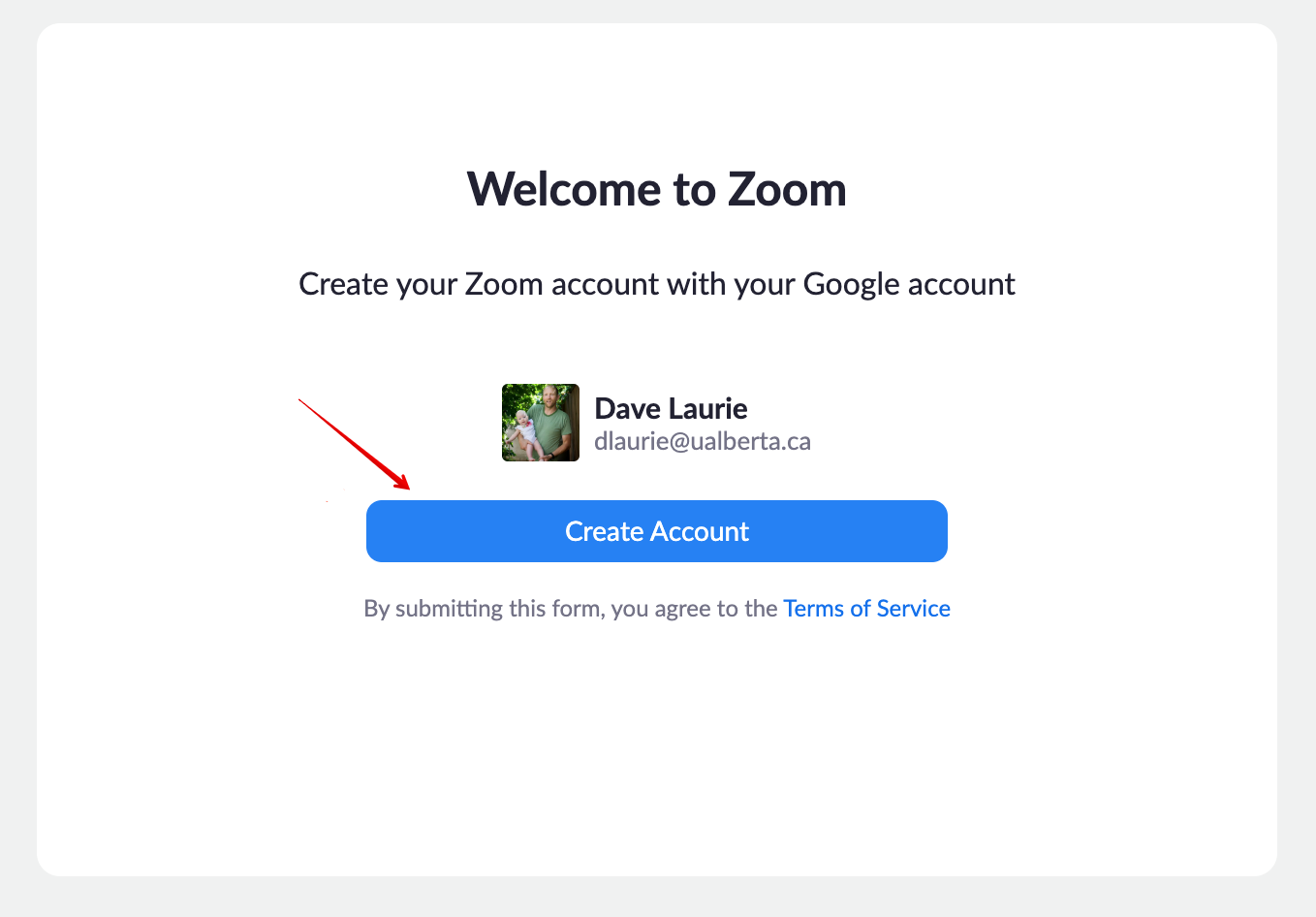
Clicking the link in your UAlberta email account will allow you to follow a sequence of steps to sign in to and connect your account to Zoom. Note: some people have had their accounts created without needing to go through this step. If you go into the Zoom tool and see the 'Zoom Course meetings' screen, your account is set up.
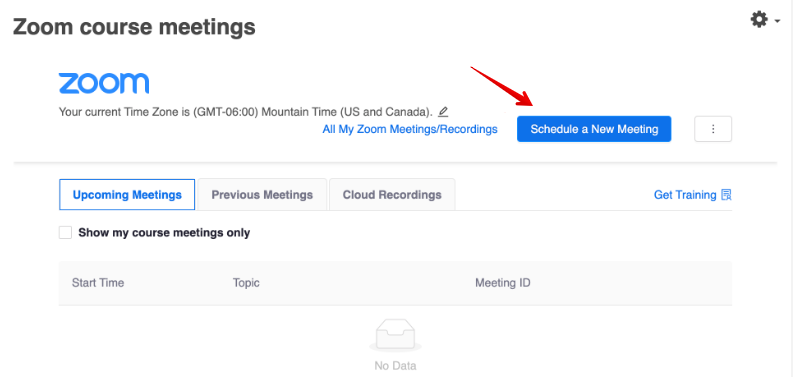
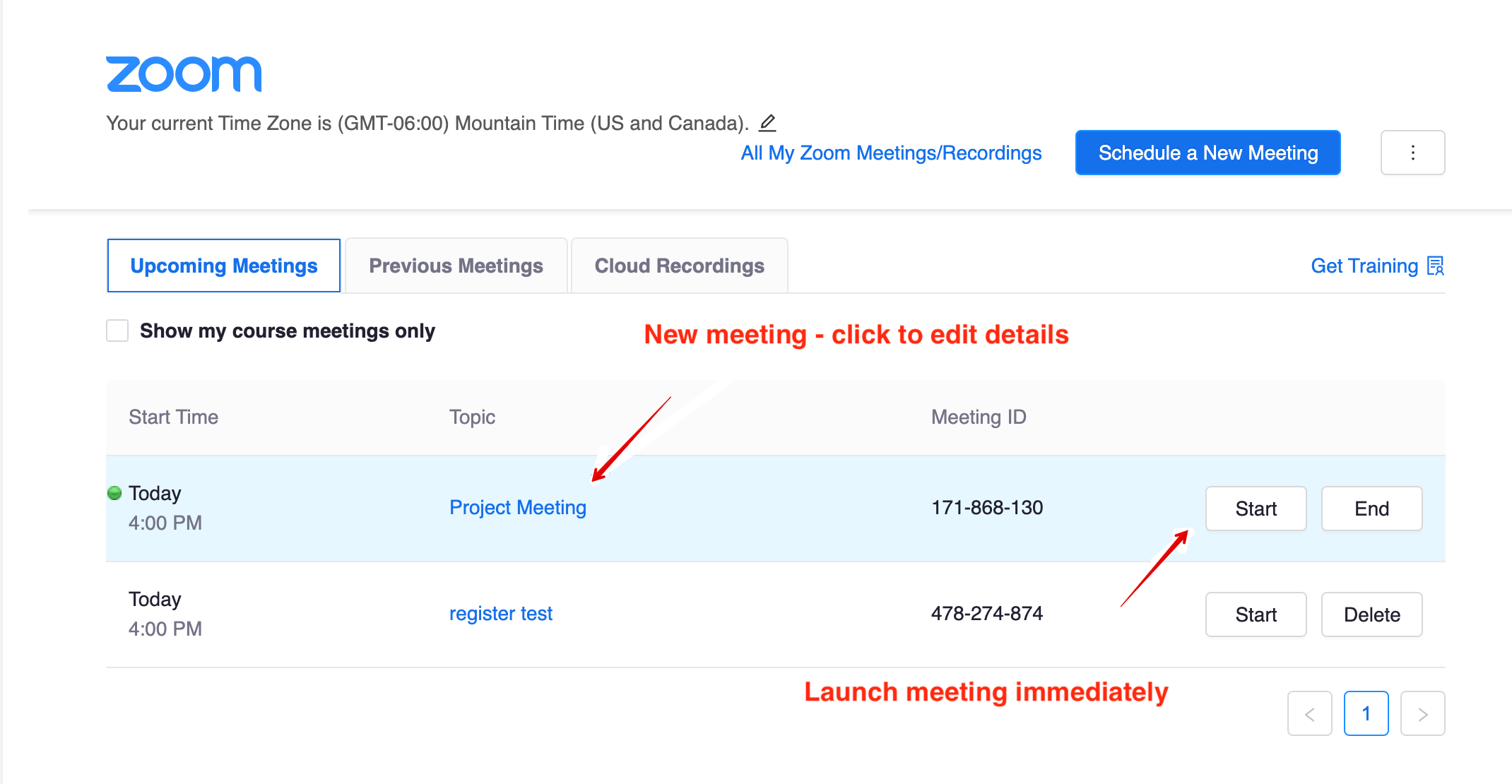
Now your account is enabled and you will be signed in to the Zoom web application. As this interface is slightly different from the integrated Canvas tool, it is recommended that you navigate back to Canvas and refresh your page. Creating Zoom meetings in Canvas:Now clicking on the Zoom link in the Canvas course sidebar, you should see the Zoom Course recordings interface. This will show any Upcoming meetings you’ve already created, along with tabs for Previous meetings, and any Cloud recordings:
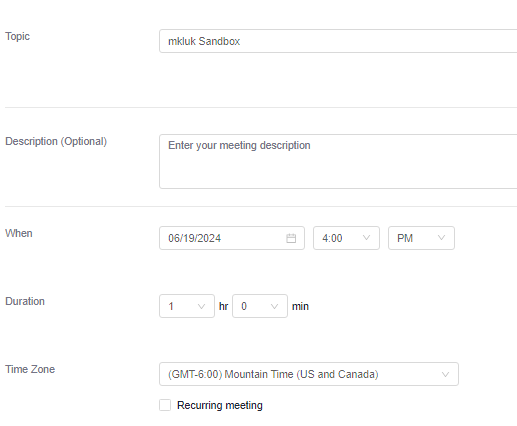
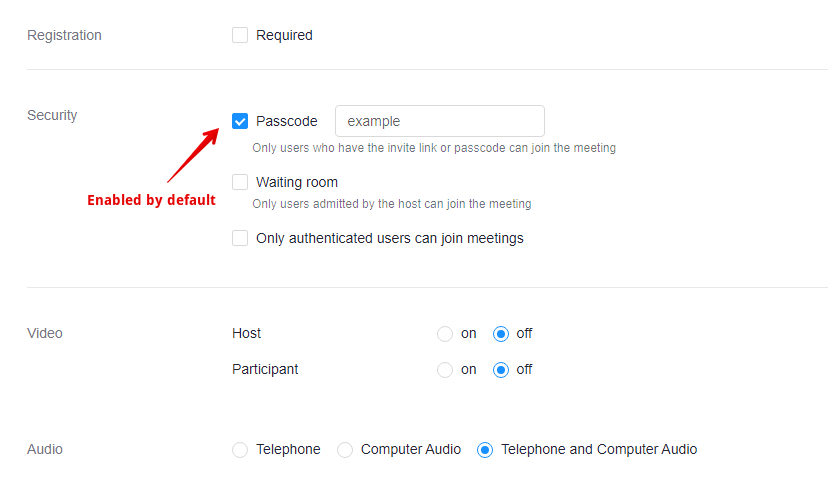
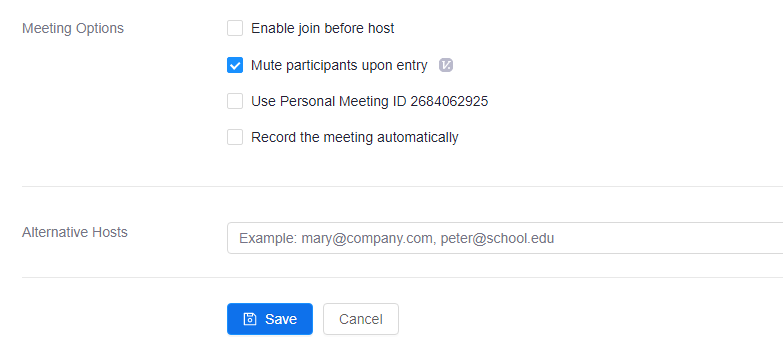
When creating a new meeting, you can specify the following:
Once created, you will see your meeting listed under ‘Upcoming meetings’:
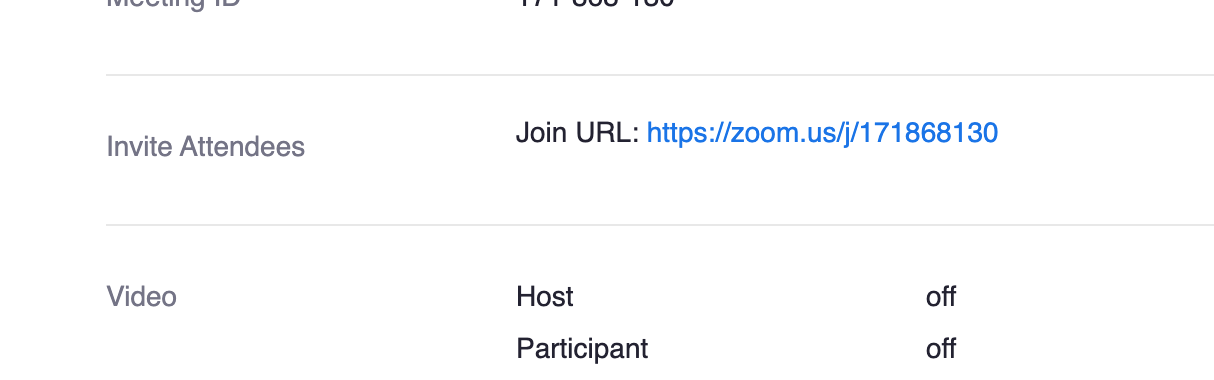
Accessing the meeting settings will provide you with a link to share with external participants. Students in your class can click the link to join.
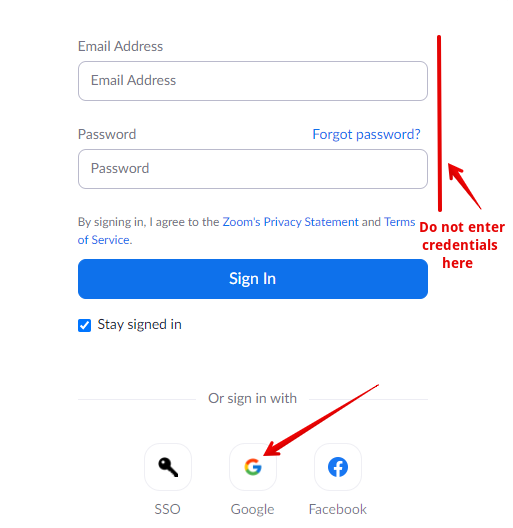
Adjusting Zoom SettingsThere are a number of display preferences and meeting options that user may wish to customize with the most common options listed below. All settings and preferences changes must be made after U of A licensed accounts are already created and are done through the Zoom web portal. To access your account: 1. Access the Zoom web portal - https://zoom.us/signin 2. Click Google and authenticate with the proper UAlberta CCID profile:
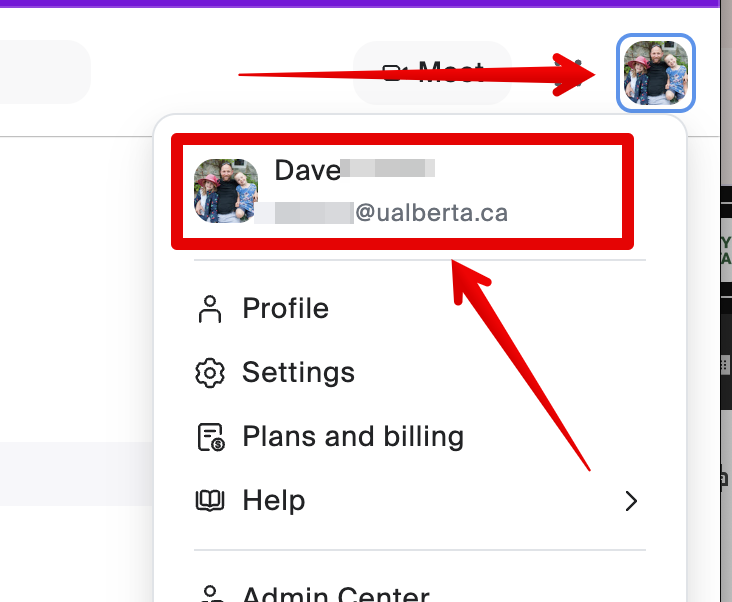
3. Confirm that the correct account is signed in in the top right and click My Account:
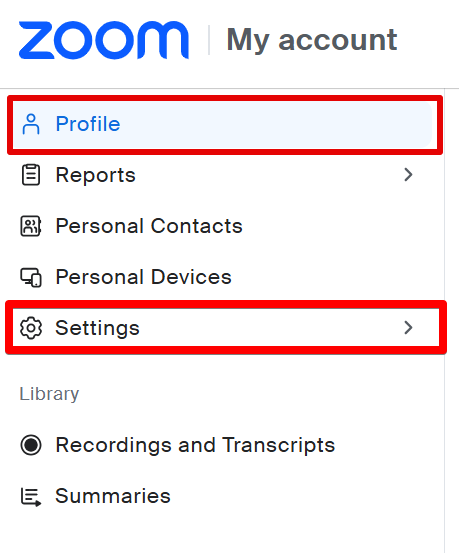
4. Click Profile ir Settings on left navigation menu to locate and adjust any of your account or meeting settings:
Common settings to change:
When registering for a Zoom account for the first time using your Bear Tracks information, Zoom will create your account as:
If none are set, it will choose your name (in ascending priority):
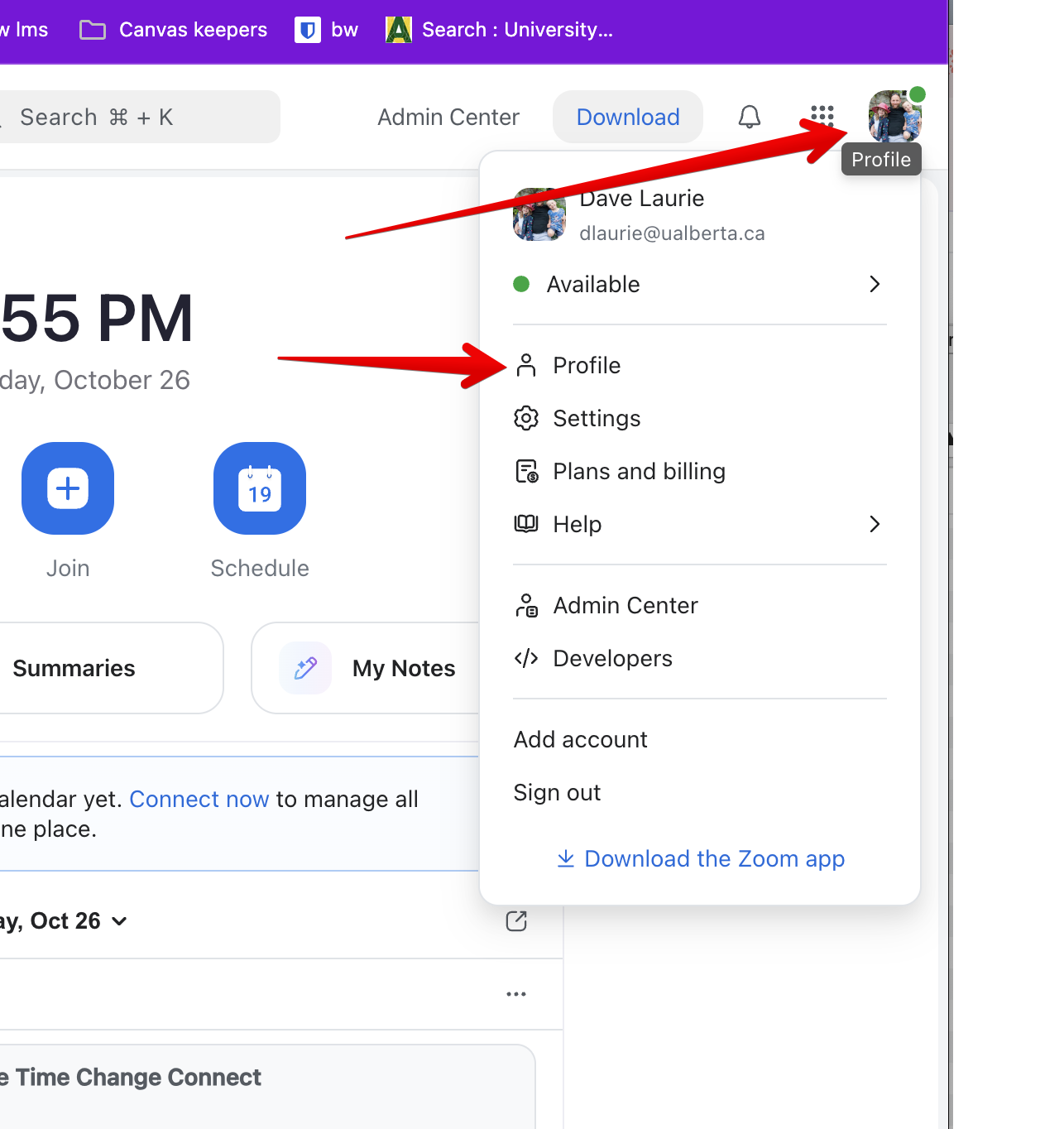
After your account is created, you are free to further customize your profile, including your display name and other settings. This can be done by accessing the Zoom web portal as shown above then cClicking on 'Profile' under the user tile at the top right:
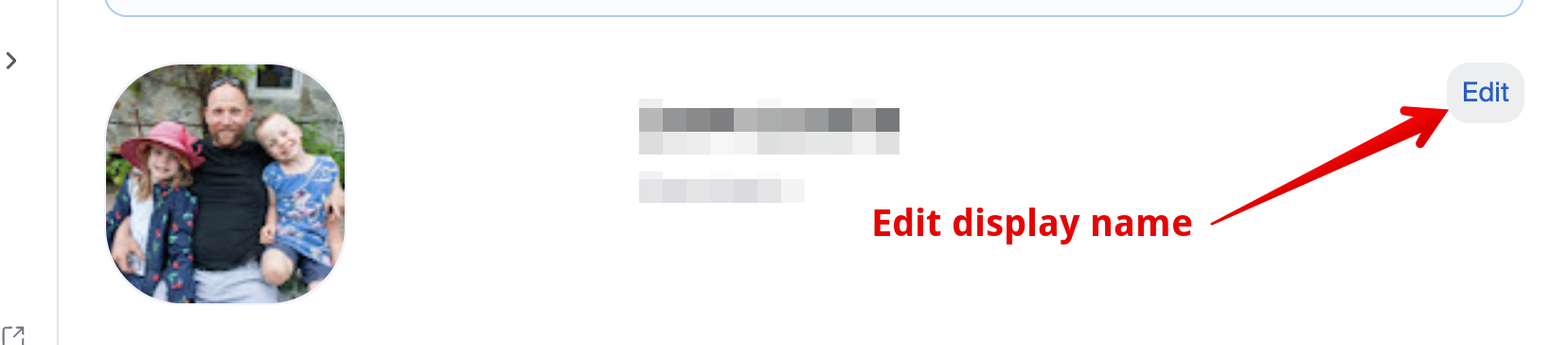
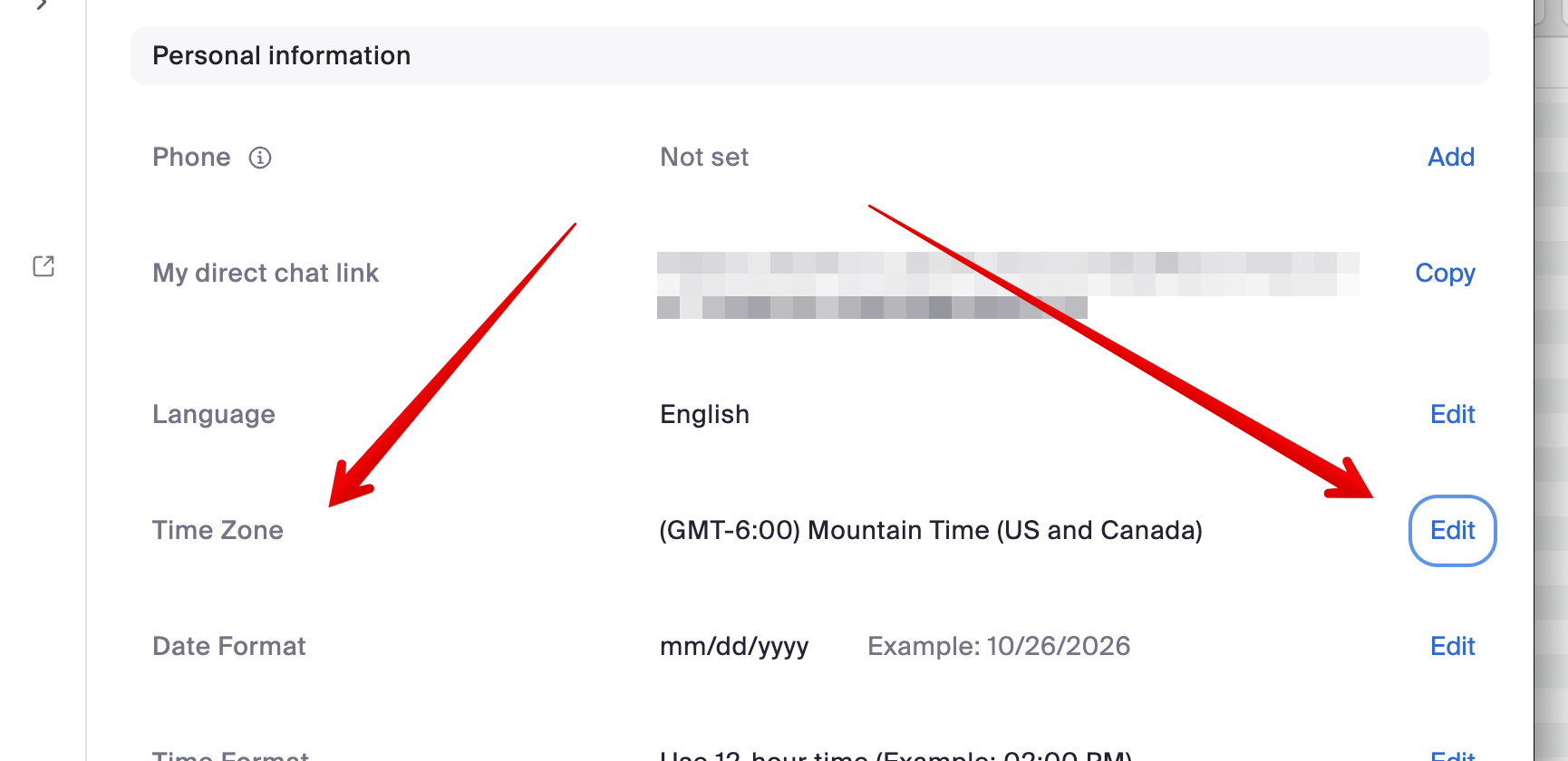
Then clicking edit to the right of your name: Note: if you already have a Zoom account where you have customized your profile, Bear Tracks will not affect your custom preferences. Changing Your Time Zone:Users may also need to adjust their profile time zone if they reside outside of Alberta so that meeting times display correctly. This is accessed on the Zoom Profile page (accessed in the same way as for editing the display name above) with the Time Zone setting available under 'Personal Information':
Important note for Alberta Time Zone change October 2026: For the time zone change required by Zoom to account for the permanent daylight savings change, the correct option to select for the time zone is '(GMT-6:00) Edmonton':
| |
|
|