eClass and Canvas Support
|
Configuring the Canvas Course Navigation Menu
Last modified on 28 January 2026 03:47 PM
|
|
|
All Canvas courses contain a list of internal links for students and teachers to navigate between the various different areas and the available content within a course. There are also several links that are displayed in the left nav that are only accessible by to teachers. This article provides users information on these different types of links and how to configure what appears in the left-hand course navigation menu. Contents:
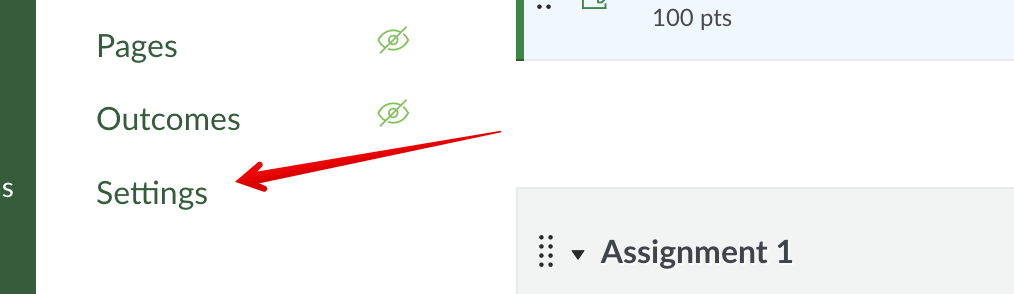
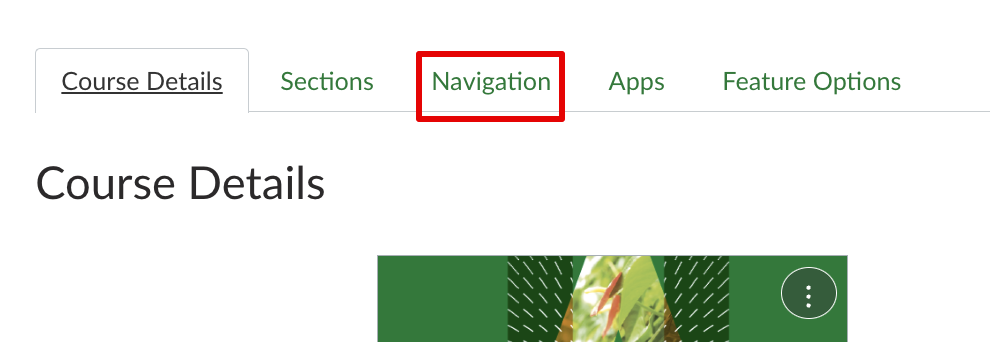
Customizing the Course Nav MenuAnyone with a Teacher role in Canvas can customize which links appear in the course left navigation menu through the course settings on the Navigation tab:
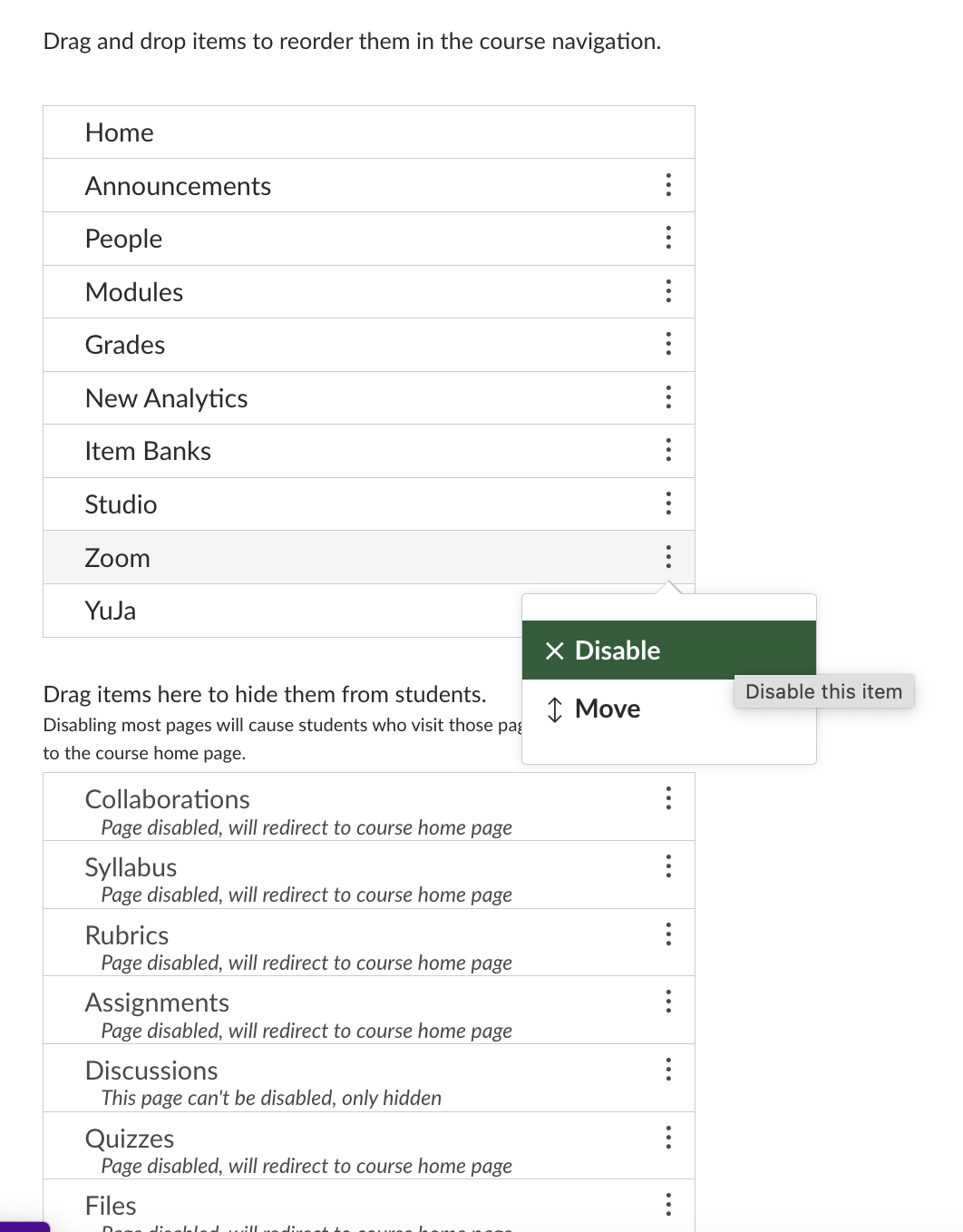
The items on the top are enabled and those on the bottom are disabled. Items can be dragged up or down to enable/disable them (and to change the order in which they appear.) Items can also be enabled/disabled under the 3 dots menu on the right to remove them from student view:
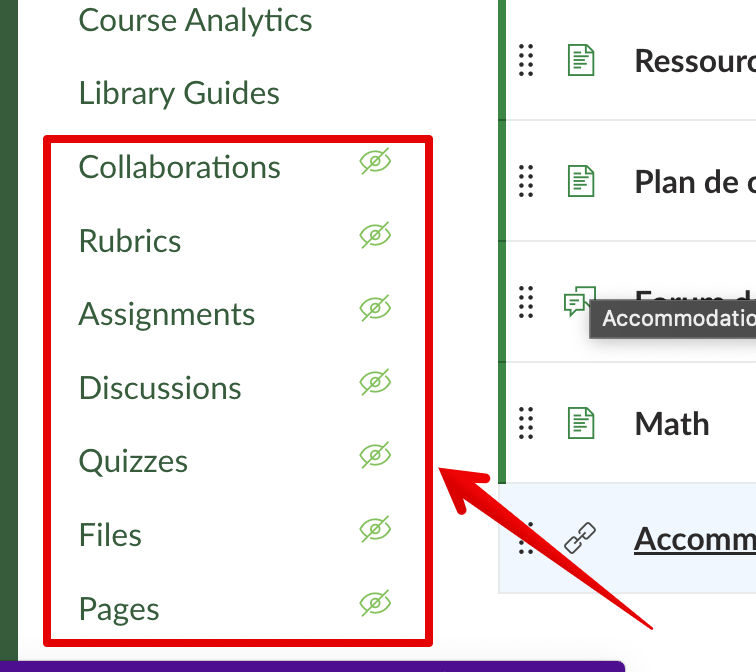
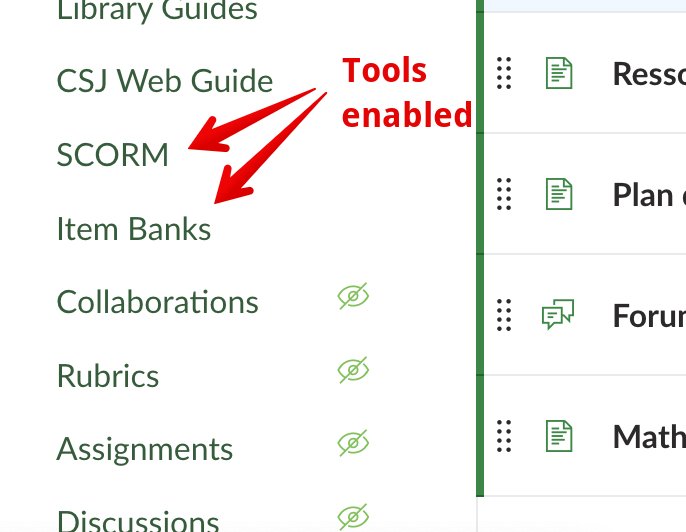
Adding/Removing Internal Canvas Course LinksBy default only a set number of internal canvas links are available in the course left navigation menu: People, Modules, Announcements, and Grades. Instructors can also choose to allow student access to the Discussions, Assignments, Quizzes, Files, Pages, Collaborations, Outcomes, Rubrics, and Syllabus areas if required, using the process shown above. In general, the recommended approach is to keep these areas hidden in the nav and to provide link any of those specific activities into Modules for structured access. (Note: the built-in Canvas Syllabus tool is not recommended; instead either a standard file or the new Simple Syllabus tool are preferred. When viewing their course, instructors will see a crosses out eyeball beside these nav items if students cannot see them:
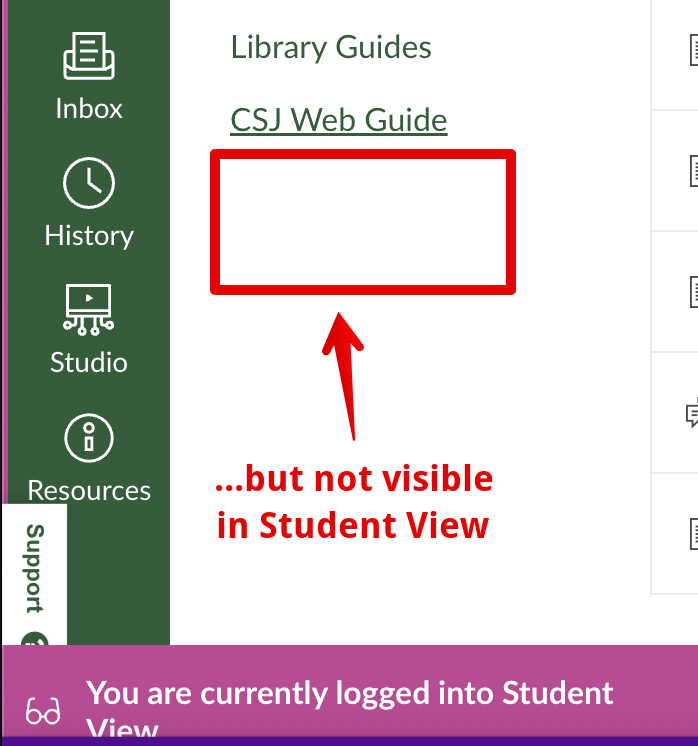
Displaying External Tool LinksA wide number of LTI external tools are also positioned in courses in the left nav area, again with instructors given the choice over what they want to display. These links include all the centrally supported DLE tools already linked in Canvas (Zoom, Yuja, Respondus LockDown Browser, Library Reading Lists, LibGuides, Simple Syllabus, and Feedback Fruits), any internal Canvas features implemented as LTI tools (Item Banks, Course Analytics, SCORM, and Studio) as well as any tools instructors may have added only to their specific course. One difference for LTI tools linked in the left nav is that these are completely hidden if they are disabled under Settings > Navigation. When enabled, the visibility for students is based on their function so that some of these tools are never visible to students. Instructors can confirm whether they appear by switching to the Student view:
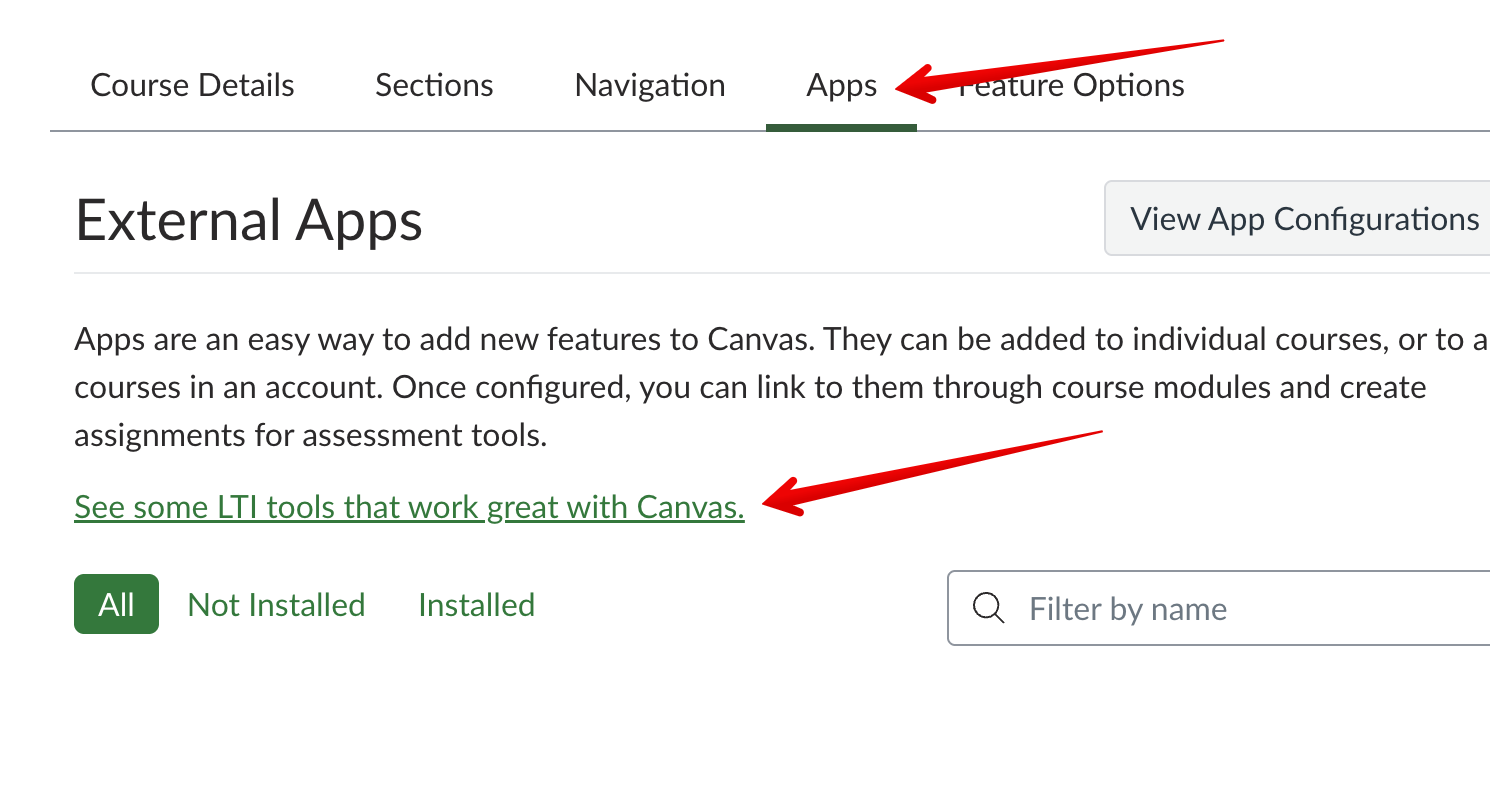
Adding Custom LinksTeachers who want to add custom navigation links to external websites into their course left nav will need to use an external app called the Redirect Tool provided by the Edu App Center. This process is launched under the Apps area within the course settings by opening the Edu App Center by clicking on the link 'See some LTI tools that work great with Canvas':
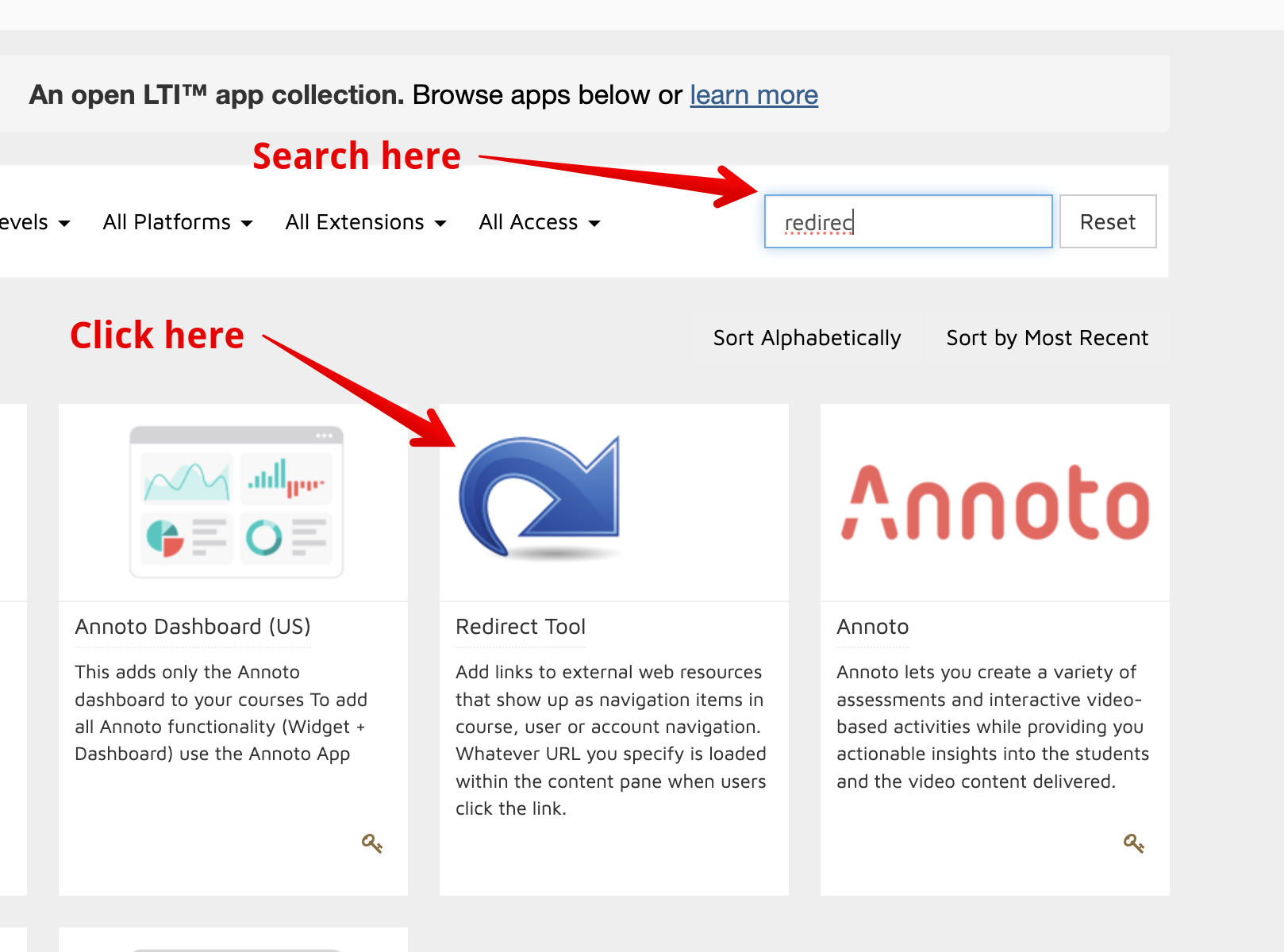
Within the App Center, users need to search for the term 'redirect' and then click on the tile for the Redirect Tool:
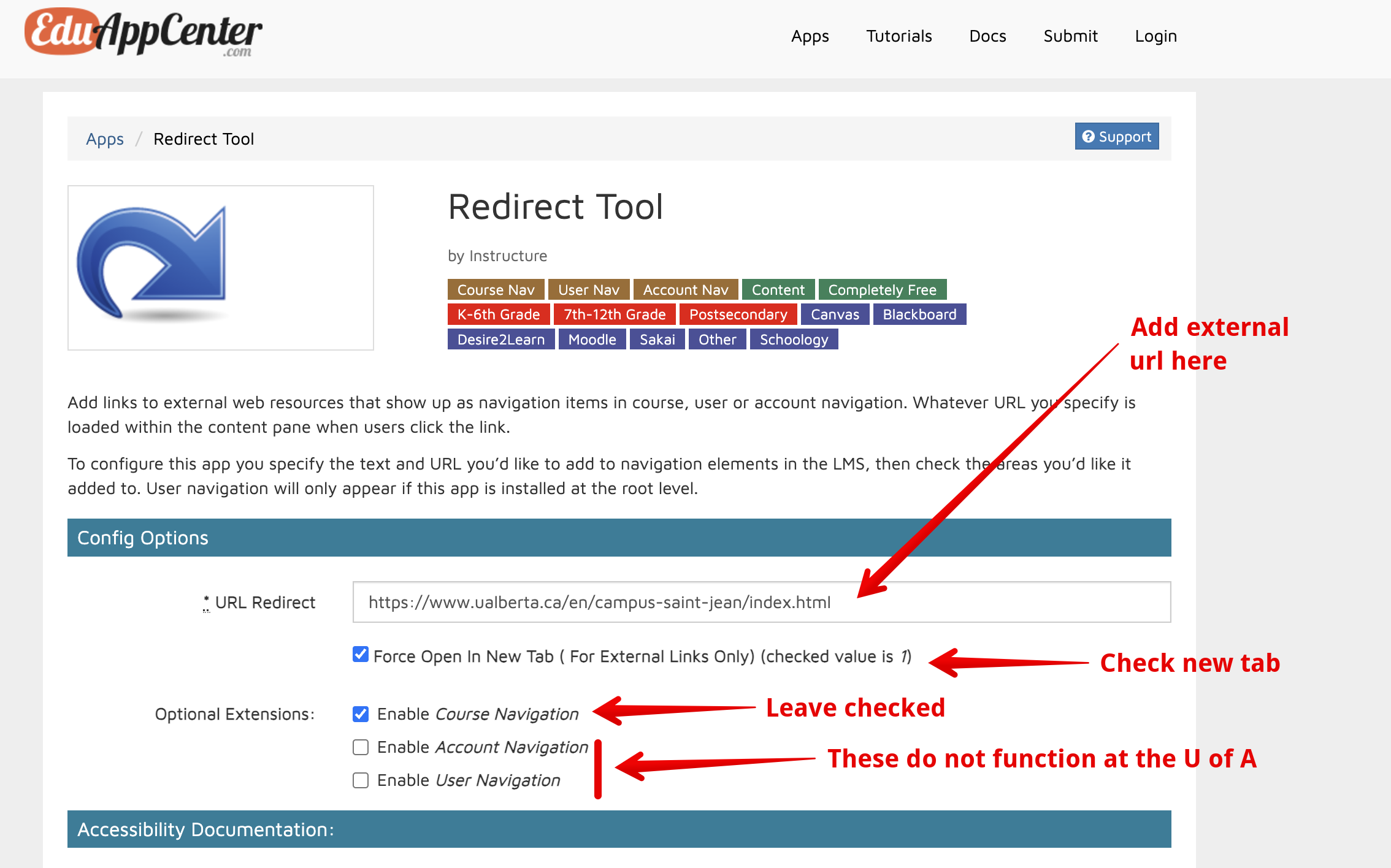
This will open the Redirect Tool configuration page where users can enter the url for the external website they want to add to their course left nav. (The settings below the url should be left at the default values):
Teachers can then scroll to the bottom of the page and copy the Configuration URL that gets created there:
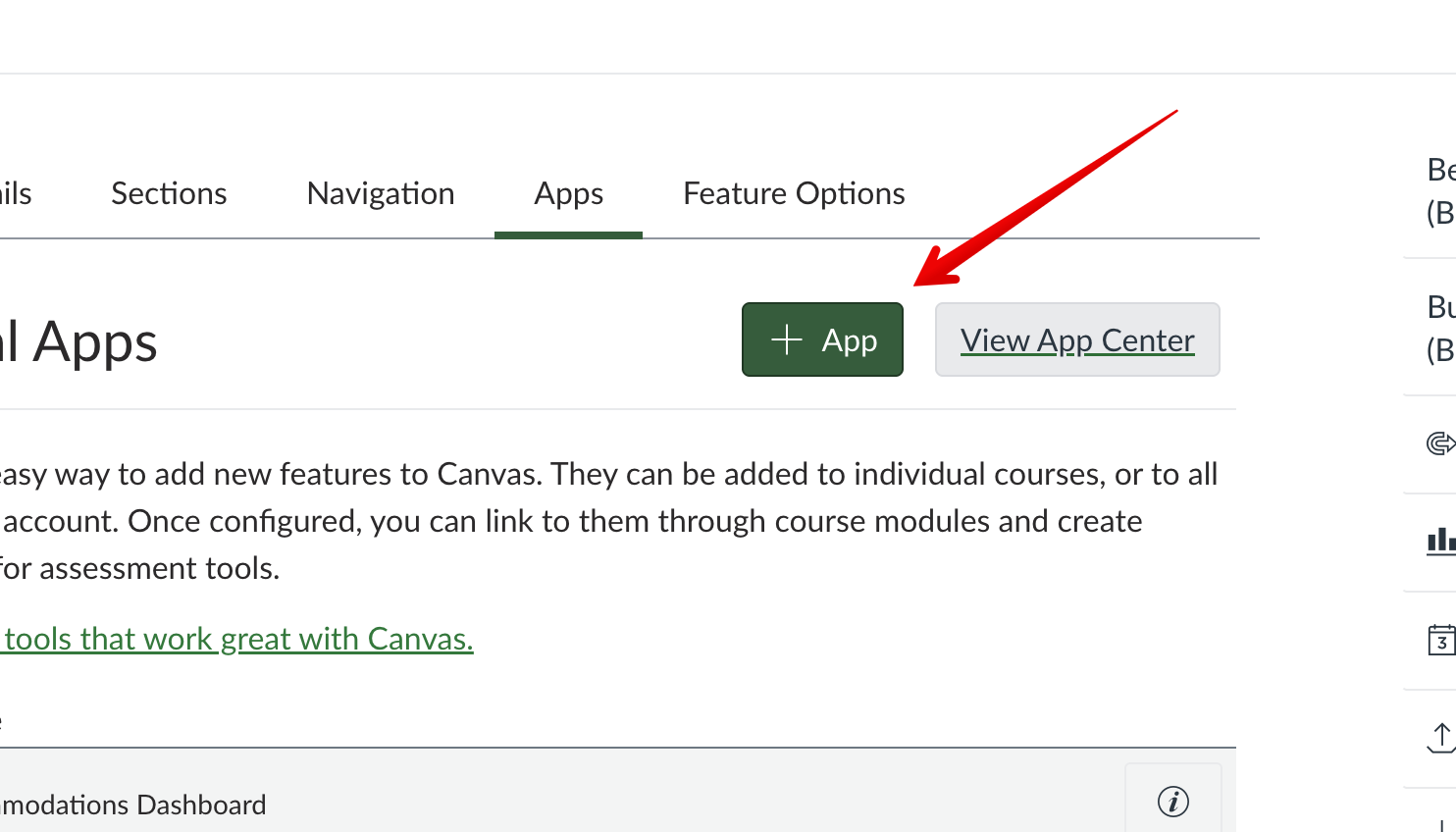
Next users need to go back into the Apps area in the canvas course settings, and click on +App:
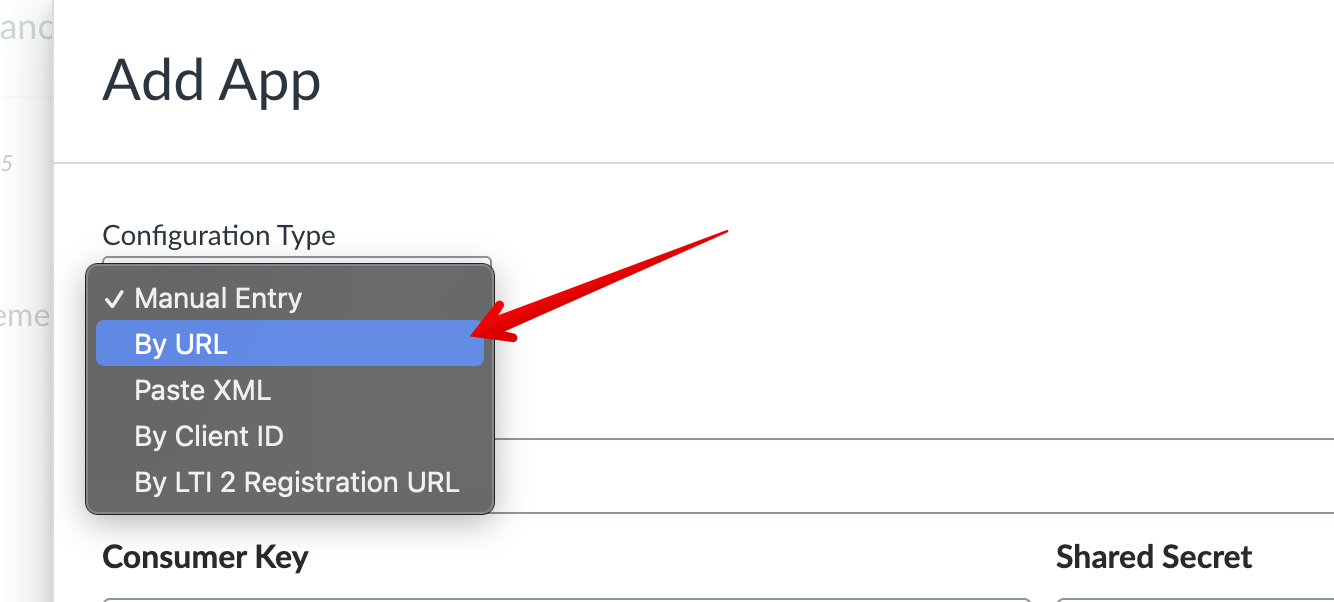
(Note: if you do not see +App, click on View App Configurations.) Next select By URL as the 'Configuration type':
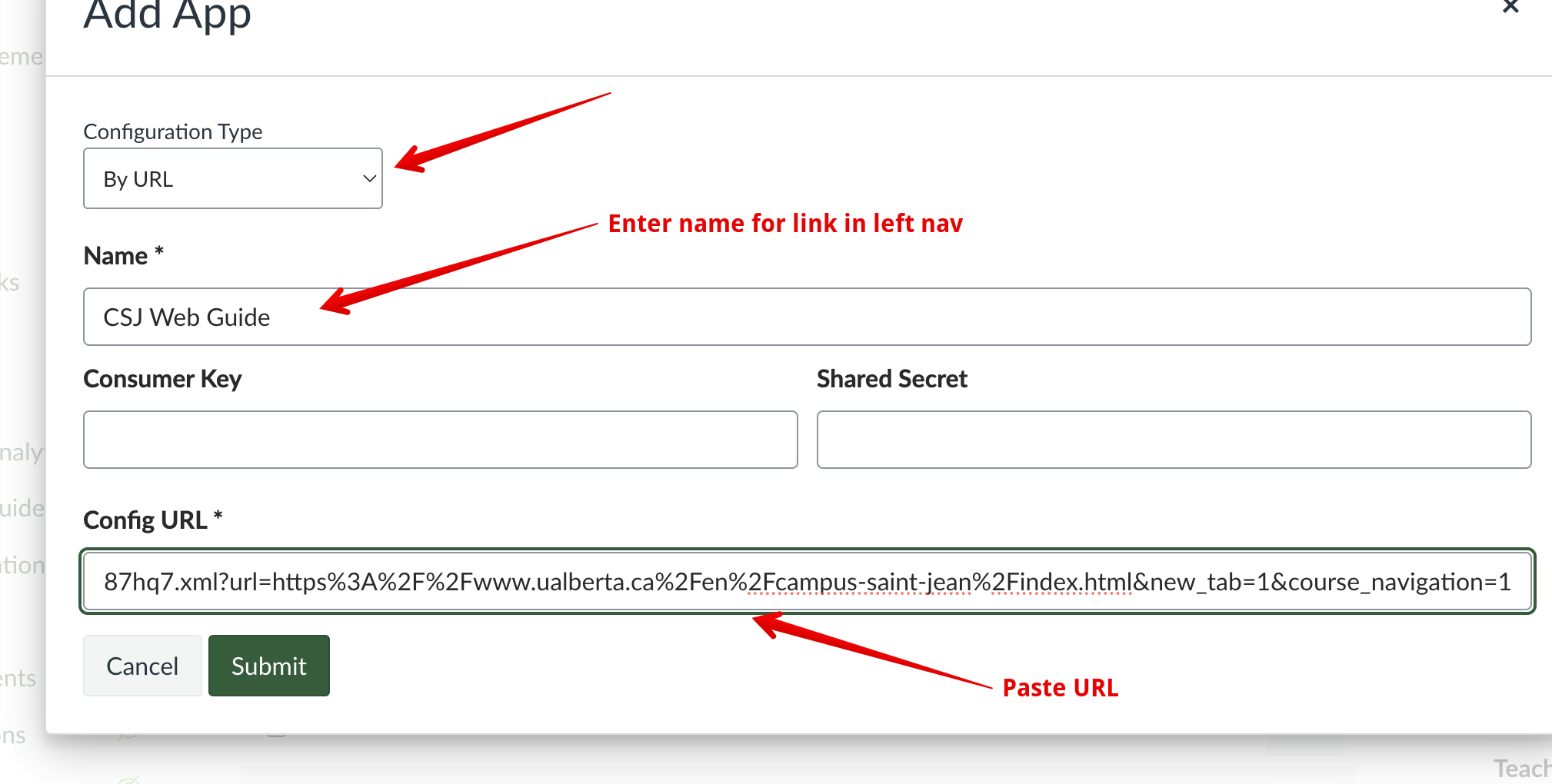
Then enter a name for the link (which will appear in the course left nav menu), paste the url copied above into the Configuration URL field, and click Submit:
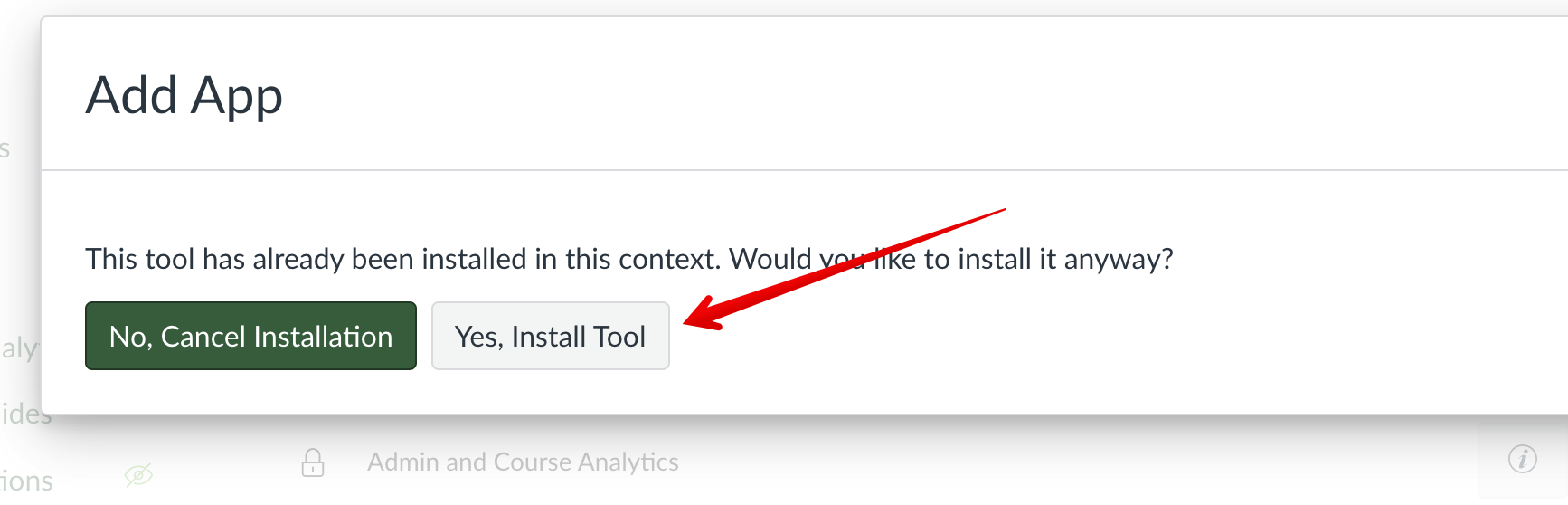
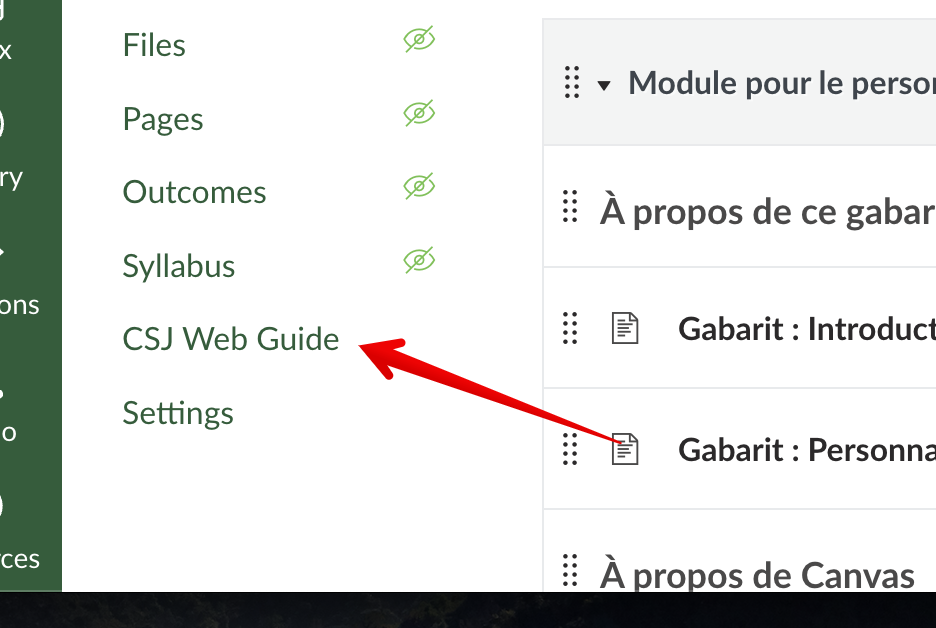
Click Yes, Install tool on the warning screen that the tool already exists in our site, and then the new link will appear in the course left nav:
| |
|
|